Managing Multiple Topics
Topics are the heart of ZeroMiss organization. Each topic is a container for related alarms, helping you keep different areas of your life organized.
Understanding Topics
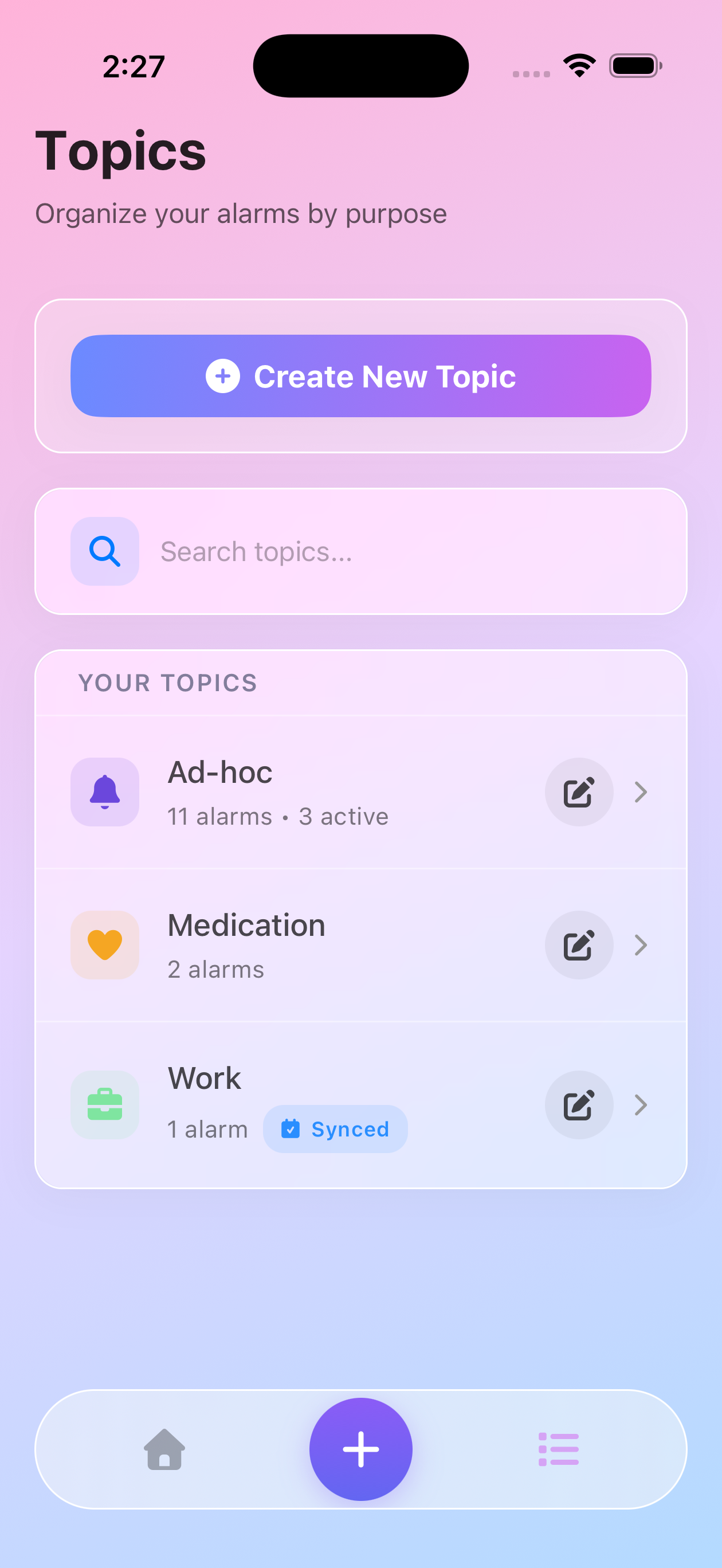
Topics help you group related alarms:
- Each topic has a name, icon, and color
- Contains multiple alarms
- Can be regular or autosync
- Visual organization system
Types of Topics
Regular Topics
Manual alarm management:
- You create all alarms
- Full control over schedules
- Mix Alert and Todo alarms
- Perfect for personal routines
Autosync Topics
Calendar-connected topics:
- Sync with Apple Calendar
- Browse upcoming calendar events
- Create alarms from events
- Great for work schedules
Creating Topics
New Topic Setup
- Go to Manage tab (bottom navigation, right side)
- Tap “Create New Topic” button at the top
- Enter topic name (required)
- Choose icon and color (required)
- Select type: Regular or Autosync (with calendar connection)
- Tap “Create Topic” to create your topic
Note: Free plan users have a limit on the number of topics they can create. Premium removes this limit.
Choosing Good Names
Be specific and clear:
- ✅ “Morning Medications”
- ✅ “Work Meetings”
- ✅ “Kids School”
- ❌ “Stuff”
- ❌ “Things”
Color Strategy
Use colors meaningfully:
- Red: Urgent/Critical
- Orange: Important
- Yellow: Daily routines
- Green: Health/Wellness
- Blue: Work/Professional
- Purple: Family/Personal
Organizing with Topics
By Life Area
Health & Wellness:
- Morning Medications
- Evening Medications
- Exercise Schedule
- Doctor Appointments
Work & Career:
- Meeting Reminders
- Project Deadlines
- Daily Tasks
- Break Reminders
Family & Home:
- School Schedule
- Household Tasks
- Pet Care
- Family Events
By Time of Day
Morning Routine:
- Wake up tasks
- Morning meds
- Breakfast prep
- Get ready
Work Hours:
- Meetings
- Tasks
- Breaks
- Deadlines
Evening Routine:
- Dinner prep
- Evening meds
- Bedtime tasks
- Tomorrow prep
Managing Your Topics
View and Edit
To modify a topic:
- Tap the topic in Manage tab to view it
- Tap the “Edit” button in the top right
- Edit name, icon, or color in the sheet that appears
- Tap “Update Topic” to save your changes
- Changes affect all alarms inside the topic
Add Alarms to Topics
Within any topic:
- Tap Add Alarm
- Set alarm details
- Choose Alert or Todo type
- Add schedules
- Save to topic
Delete Topics
Remove unused topics:
- In the Manage tab, find the topic you want to delete
- Swipe left on the topic
- Tap the delete button that appears
- Confirm deletion in the alert
- The topic and all its alarms are removed
Warning: Deleting a topic removes all its alarms permanently. The app will show you how many alarms will be deleted before you confirm.
Working with Alarms
Alarm Types
Alert Alarms:
- Time-specific notifications
- Must acknowledge
- Good for medications
- Urgent reminders
Todo Alarms:
- Flexible timing
- Mark as complete
- Daily reset
- Task tracking
Multiple Schedules
One alarm can have multiple times:
- Create the alarm
- Add first schedule
- Add additional schedules
- All in one alarm
- Easy to manage
Autosync Topics
Calendar Connection
Connect to calendars:
- Create autosync topic
- Select calendars to sync
- Browse upcoming events
- Create alarms with custom lead times
Managing Calendar Alarms
You control your calendar alarms:
- Browse new events and create alarms
- Manually update alarms when events change
- Delete alarms for cancelled events
- Full manual control
Best Practices
Keep It Simple
- Start with 3-5 topics
- Add more as needed
- Combine similar items
- Review regularly
Naming Convention
Develop a system:
- Include time: “Morning Meds”
- Include person: “John’s Schedule”
- Include frequency: “Daily Tasks”
- Be consistent
Regular Review
Weekly maintenance:
- Check upcoming alarms
- Remove completed todos
- Adjust timing if needed
- Delete old alarms
Monthly cleanup:
- Remove unused topics
- Update names/colors
- Reorganize as needed
- Simplify where possible
Common Topic Examples
Medication Management:
- One topic per person
- Or one per time of day
- Clear naming
- Consistent colors
Work Schedule:
- Autosync with work calendar
- 15-minute lead times
- Separate from personal
- Professional color scheme
Family Coordination:
- One topic per family member
- Or one for whole family
- School and activities
- Bright, distinct colors
Troubleshooting
Too Many Topics?
Simplify:
- Combine similar topics
- Delete unused ones
- Use broader categories
- Archive seasonal items
Can’t Find an Alarm?
Search strategies:
- Check each topic
- Look for the icon
- Remember the color
- Check if disabled
Autosync Not Working?
Verify:
- Calendar permissions granted
- Internet connection active
- Calendar selected in topic
- Pull to refresh
Tips from Users
Sarah, Mom of Three: “I use one topic per child with their favorite color. Easy to see whose activity is next.”
Mike, Project Manager: “Calendar sync lets me browse upcoming meetings and create prep alarms with one tap.”
Lisa, Caregiver: “Different colors for mom’s meds vs dad’s meds. No mix-ups!”
Viewing Topics on Home Screen
Your topics integrate seamlessly with the new filtering features:
- By Topic Filter - On the Home screen, tap “By Topic” to see all alarms organized by their topic
- Topic Colors - Each topic’s color appears as a badge on its alarms
- Topic Icons - Visual indicators help you quickly identify which topic each alarm belongs to
This makes it easy to focus on specific areas of your life (like just medication, or just work tasks) at a glance.
Next Steps
- Create your first topic
- Add alarms to topics
- Use Smart Filtering to view by topic
- Set up recurring alarms
Need Help?
Questions about topics? Contact support for assistance!