How to Add Alarms to Your Topics
Once you’ve created your topics, it’s time to populate them with alarms. This guide will show you how to add alarms to keep everything organized.
Adding Your First Alarm
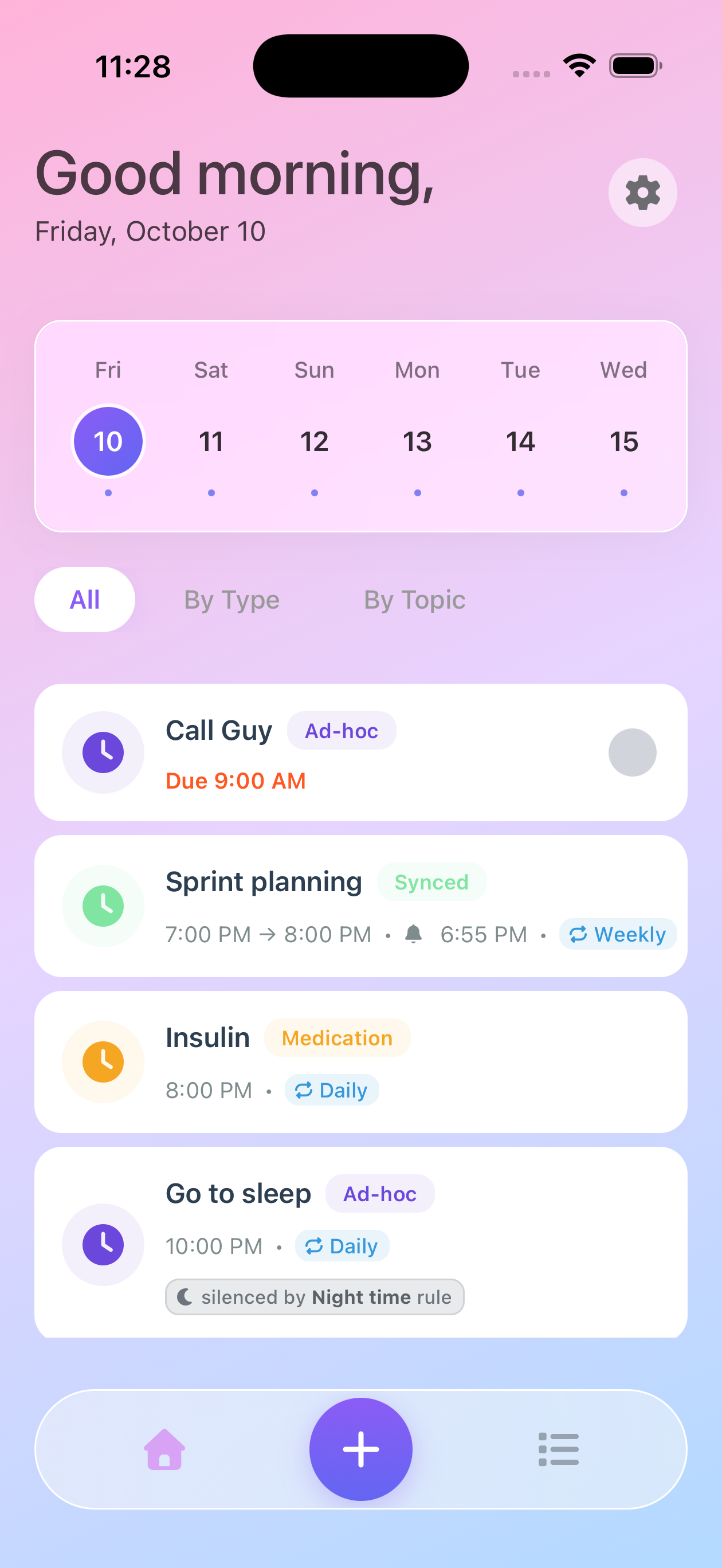
Step 1: Create New Alarm
Tap the large plus (+) button at the bottom center of the screen.
Step 2: Choose Alarm Type
Select the type of alarm you need:
Alert - Time-specific notifications that require acknowledgment
- Best for appointments, meetings, time-critical reminders
- Notifies once at scheduled time
- Must be actively dismissed
Todo - Flexible task reminders that can be marked complete
- Best for medications, daily tasks, checklists, flexible activities
- Stays visible until marked done
- Can be completed anytime during the day
Step 3: Select Topic
Choose which topic this alarm belongs to from the dropdown. This keeps your alarms organized and easy to find.
Step 4: Configure Alarm Details
Fill in the essential information:
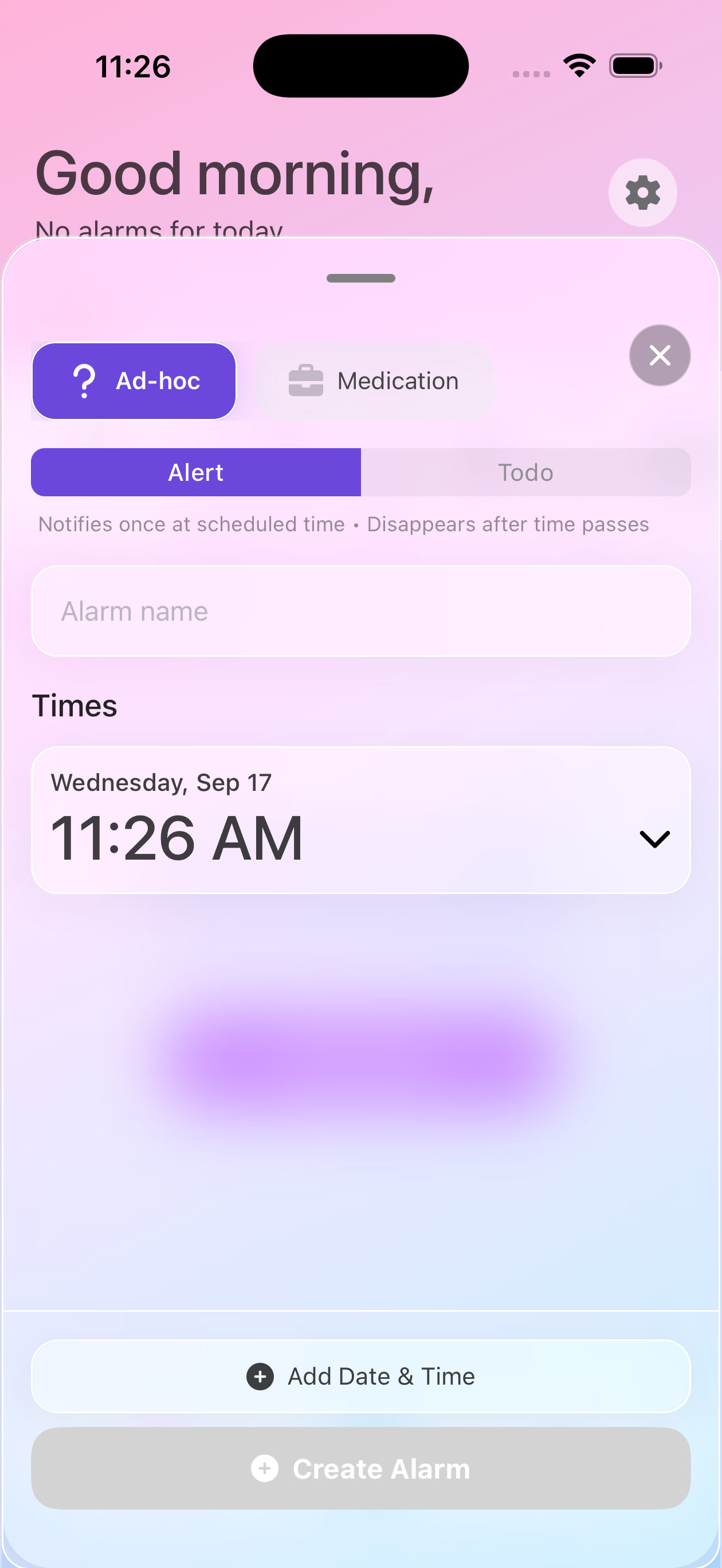
Alarm Name
Give your alarm a clear, descriptive name:
- ✅ Good: “Take Metformin 500mg”
- ❌ Bad: “Pills”
Time
Set the exact time you need the reminder:
- Use the date/time picker
- Tap to adjust hours and minutes
- Set AM/PM as needed
- Add multiple schedules if you need the same alarm at different times
Setting Up Recurrence
Most alarms need to repeat. Here’s how to configure them:
Daily Alarms
Perfect for medications, daily routines, or work tasks:
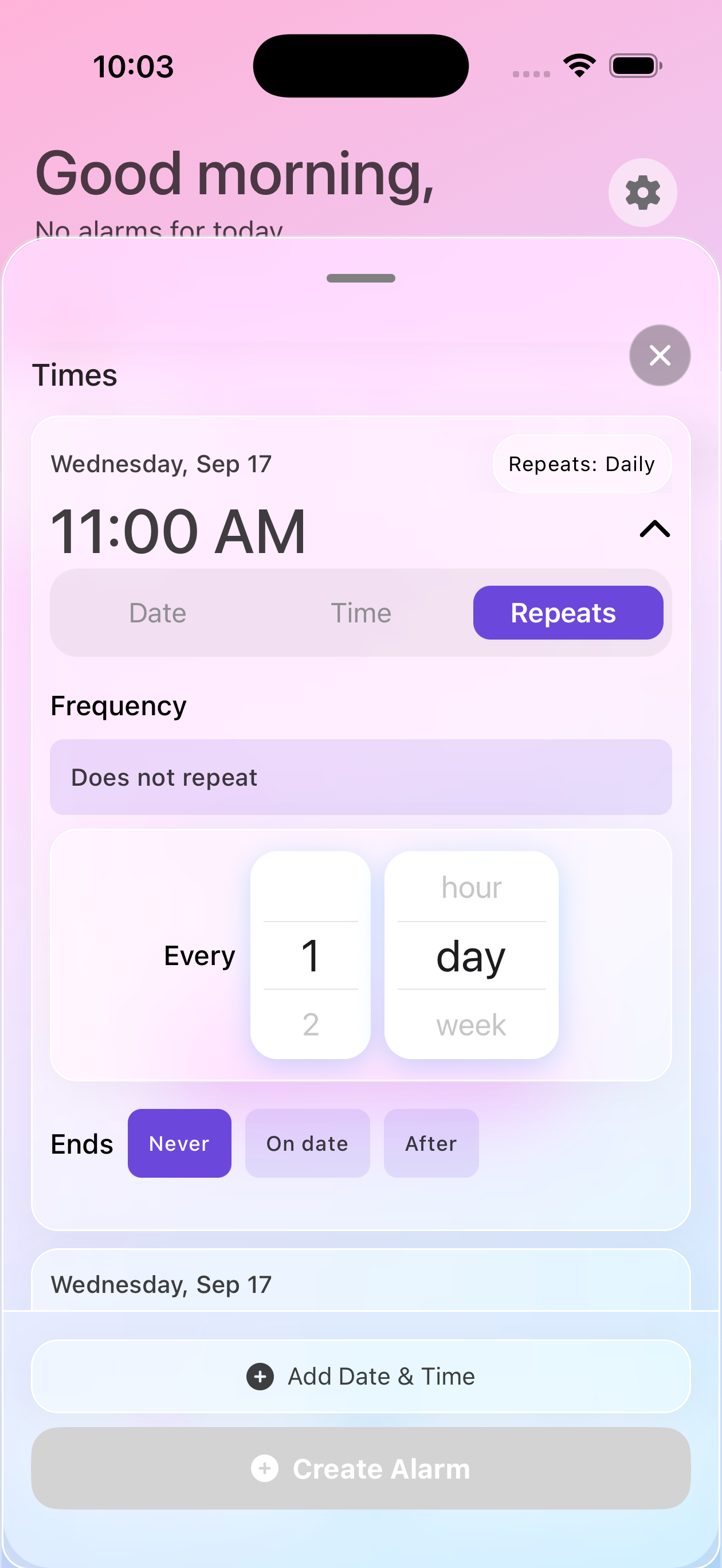
- Toggle Repeat ON
- Select Every Day
- Choose your end option:
- Never - Continues indefinitely
- End Date - Stops on a specific date
- After X Times - Stops after a set number of occurrences
Weekly Patterns
For alarms that repeat on specific days:
- Toggle Repeat ON
- Select Custom
- Choose which days (Mon, Tue, Wed, etc.)
- Perfect for:
- Work meetings (Mon-Fri)
- Weekend medications
- Gym schedule (Mon, Wed, Fri)
Setting an End Date
For temporary schedules like antibiotics:
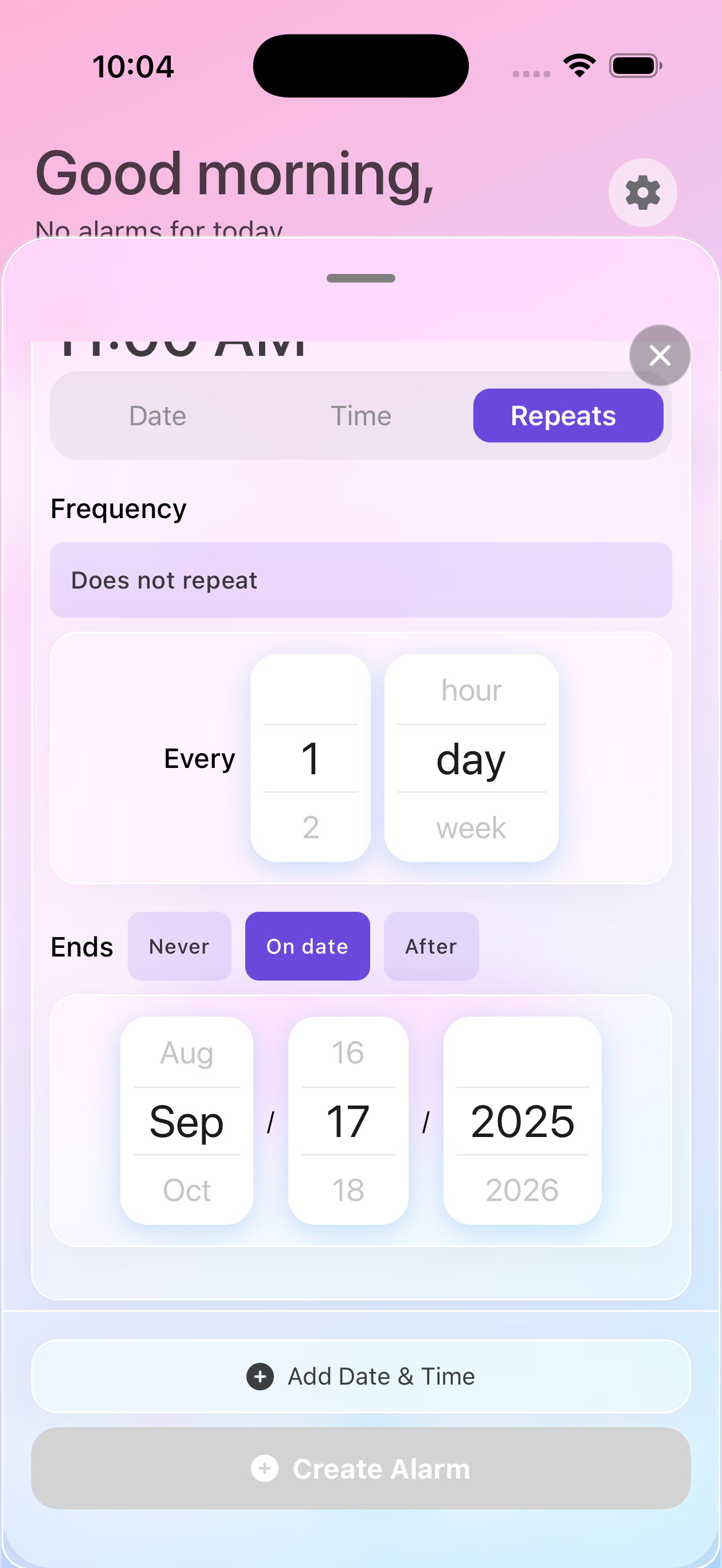
- In Repeat settings, tap Ends
- Select On Date
- Choose your end date
- Alarm automatically stops after this date
Limited Occurrences
For a specific number of doses:
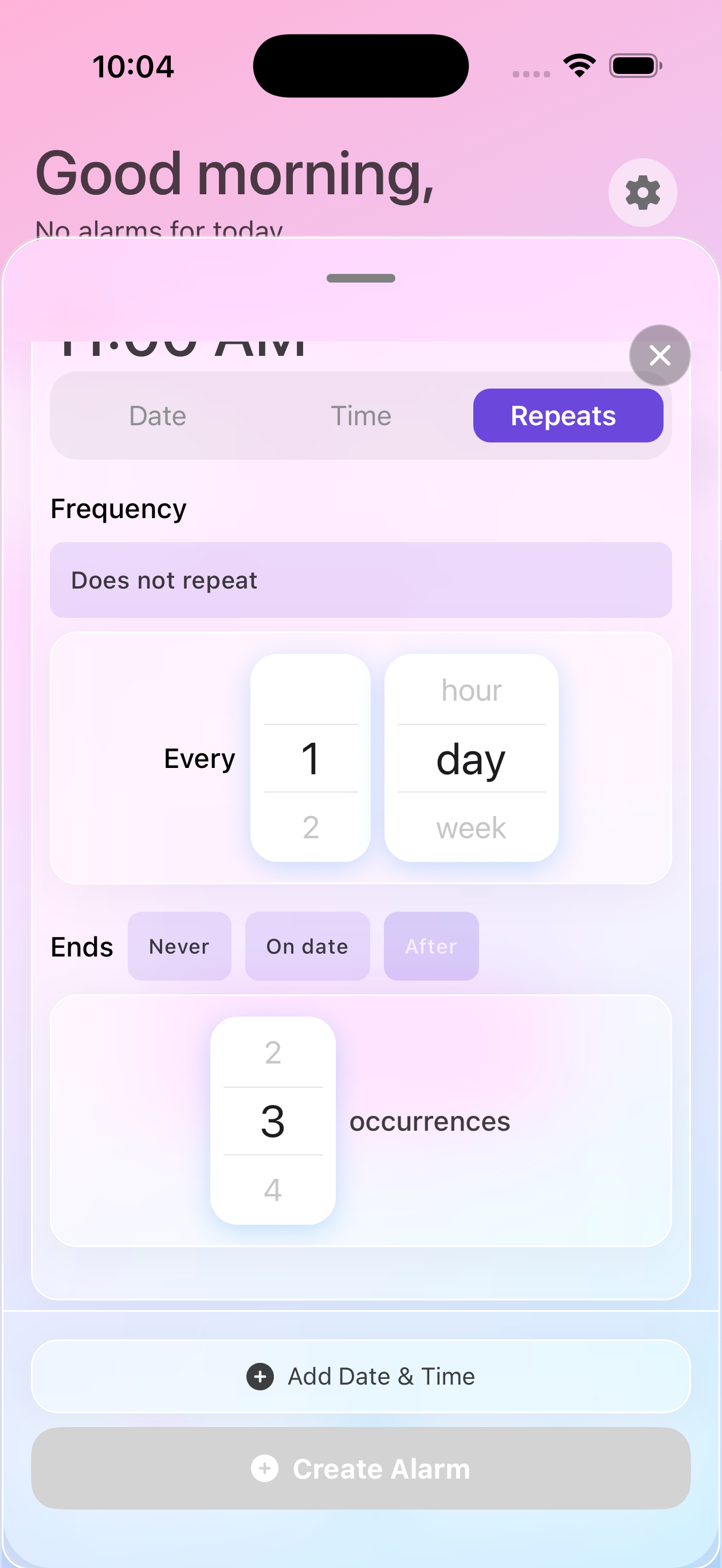
- In Repeat settings, tap Ends
- Select After
- Enter number of occurrences
- Perfect for “Take 10 doses” prescriptions
Best Practices
Naming Conventions
Use consistent naming:
- Include medication name and dose
- Add time indicators if helpful
- Use action words (“Take”, “Check”, “Call”)
Regular Reviews
Keep your alarms current:
- Weekly: Check upcoming alarms
- Monthly: Remove outdated alarms
- Quarterly: Reorganize topics as needed
Viewing Your Alarms
Once created, your alarms appear in multiple places:
- Topic Screen - See all alarms within a specific topic
- Home Screen (All) - View all alarms chronologically
- By Type Filter - Home screen filtered by Alert, Todo, or calendar Events
- By Topic Filter - Home screen organized by topic with color coding
Use the filter tabs on the Home screen to switch between views and find what you need quickly.
Next Steps
Now that you know how to add alarms to topics:
- Use Smart Filtering to organize your view
- Set up recurring schedules
- Manage multiple topics
- Connect your calendar
Need Help?
If you’re having trouble with alarms, contact our support team and we’ll help you get organized!