Smart Filtering
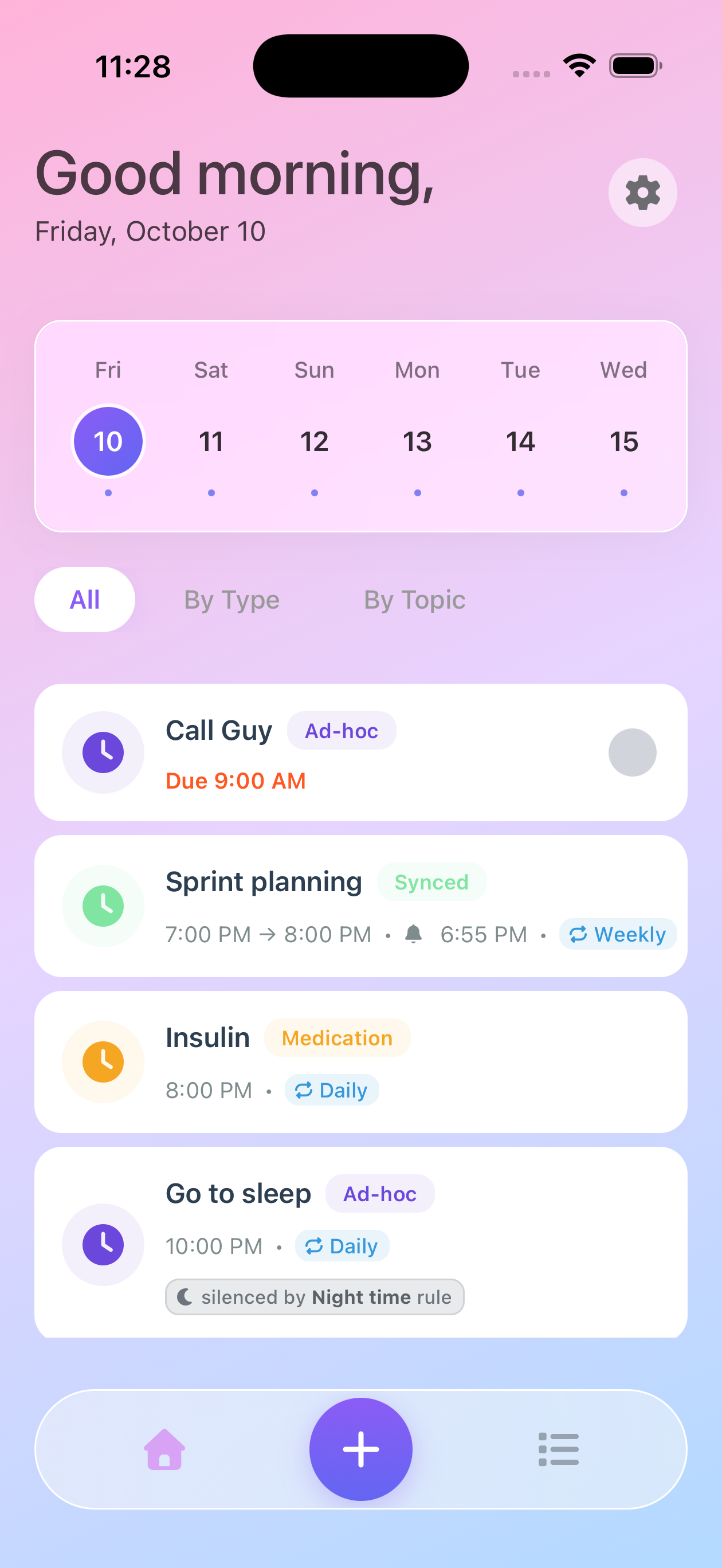
ZeroMiss v1.6 introduces Smart Filtering, giving you multiple ways to view and organize your alarms on the Home screen.
Filter Options
All
View all your alarms for the selected day in chronological order, regardless of type or topic.
Best for: Getting a complete timeline of your day.
By Type
Group your alarms by their type:
- ALERTS: Time-specific notifications that require acknowledgment (appointments, meetings)
- TO-DO: Flexible task reminders that can be marked complete (medications, daily tasks, checklists)
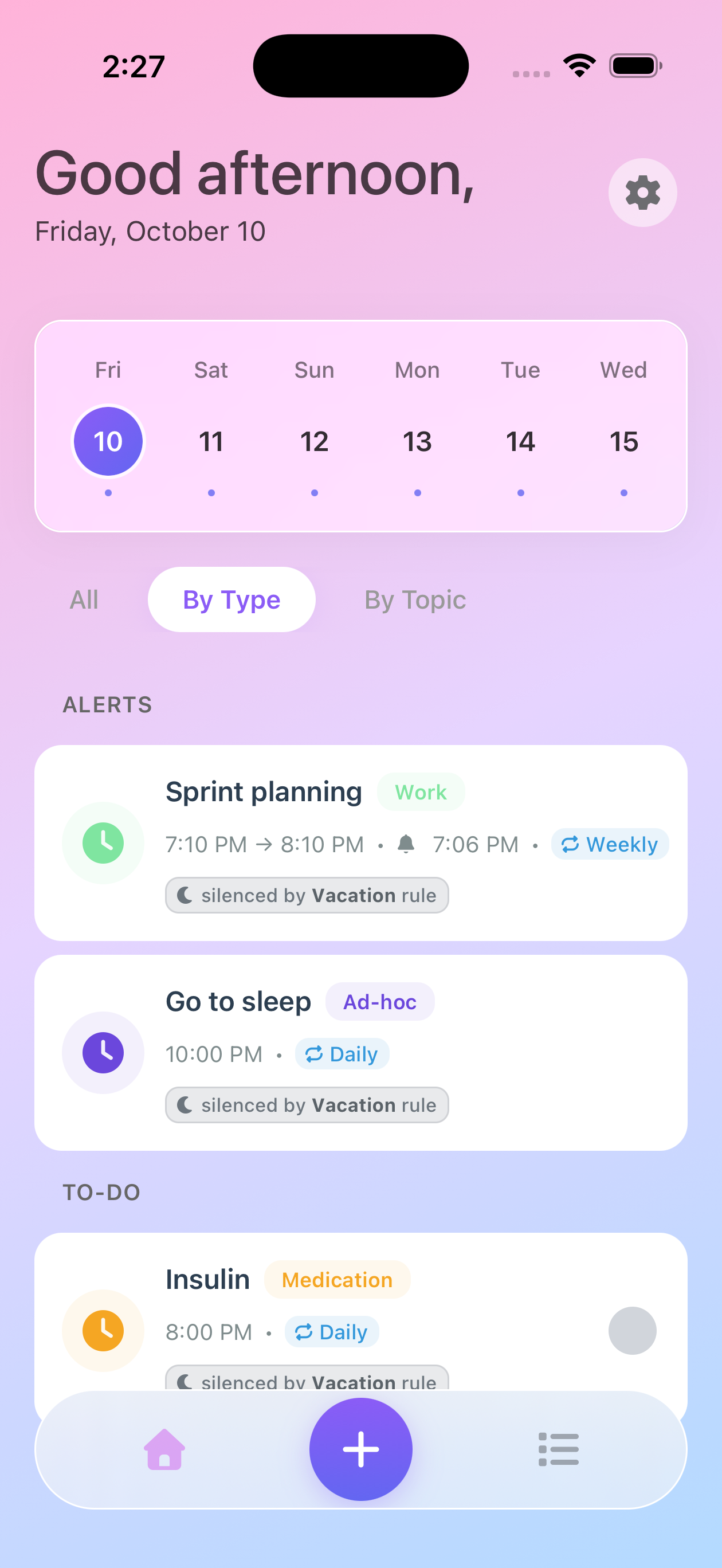
Best for: Distinguishing between time-sensitive alerts and flexible to-do items.
By Topic
Organize alarms grouped under their topics (Medication, Work, Ad-hoc, etc.), with each topic showing its color and icon.
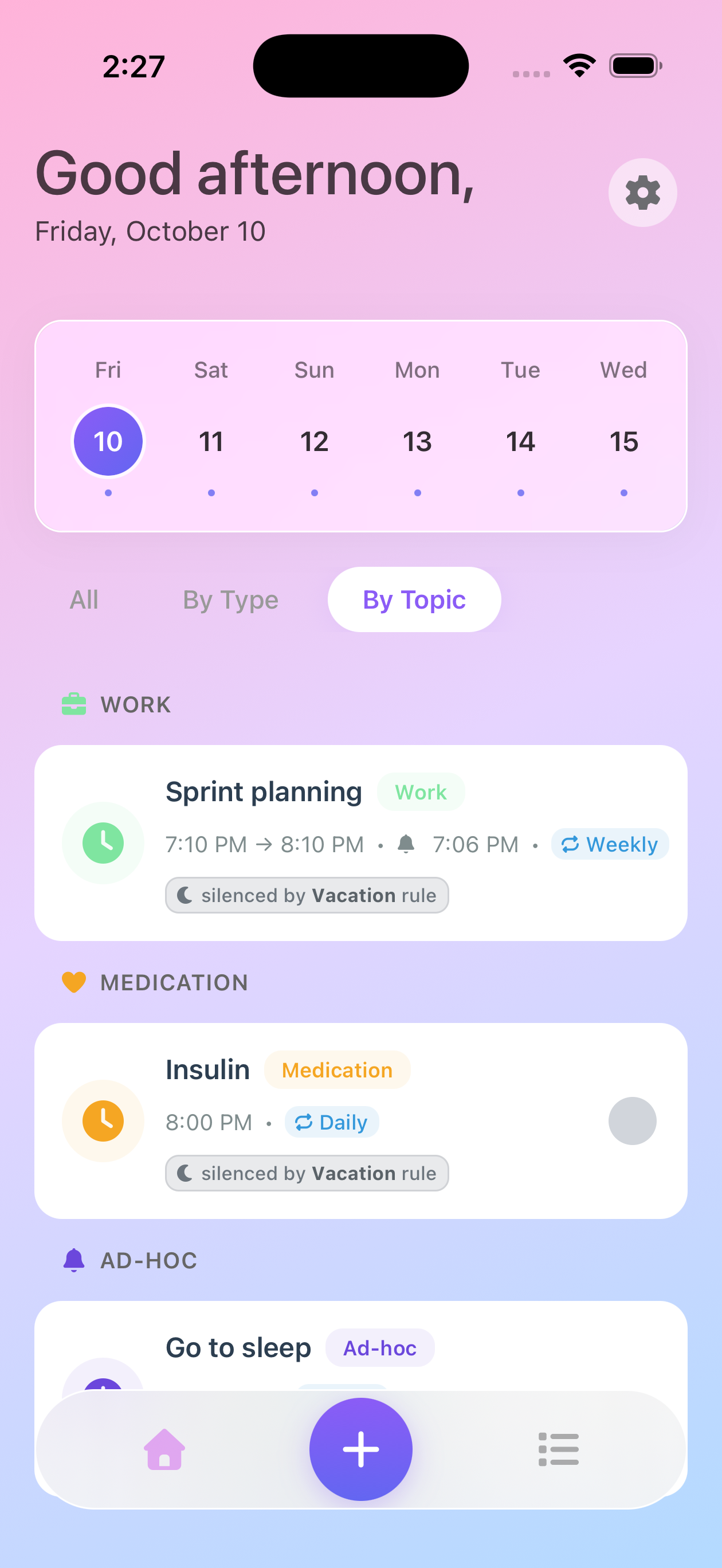
Best for: Managing alarms by purpose or category.
How to Switch Filters
- On the Home screen, look for the filter tabs below the date selector
- Tap “All”, “By Type”, or “By Topic”
- Your alarm list instantly reorganizes
Filter Benefits
By Type Filtering
- Separate time-specific alerts from flexible to-dos
- Focus on urgent notifications that need acknowledgment
- Manage task completion separately from time-based reminders
By Topic Filtering
- Focus on specific areas (just medication, just work tasks)
- See topic colors and icons for visual organization
- Manage alarms within their context
Tips
- Your filter selection persists when you return to the Home screen
- All filters show the same alarms - just organized differently
- Use date navigation with any filter for maximum flexibility
- Swipe on any alarm to complete, edit, or delete it regardless of filter