Using Multiple Schedules in One Alarm
One of ZeroMiss’s powerful features is the ability to add multiple times to a single alarm. Perfect for medications taken several times per day or recurring tasks at different times.
When to Use Multiple Schedules
Perfect For:
- ✅ Same medication, multiple daily doses
- ✅ Recurring task at different times (morning + evening check-in)
- ✅ Meal reminders (breakfast, lunch, dinner)
- ✅ Hydration reminders throughout the day
- ✅ Exercise sessions (morning + evening workout)
Not Ideal For:
- ❌ Different medications (use separate alarms)
- ❌ Completely different tasks (use separate alarms)
- ❌ Tasks that need independent control
How to Add Multiple Schedules
Step 1: Create the Alarm
- Go to your topic
- Tap “Add Alarm”
- Enter the alarm name (e.g., “Metformin 500mg”)
- Choose Alert or Todo type
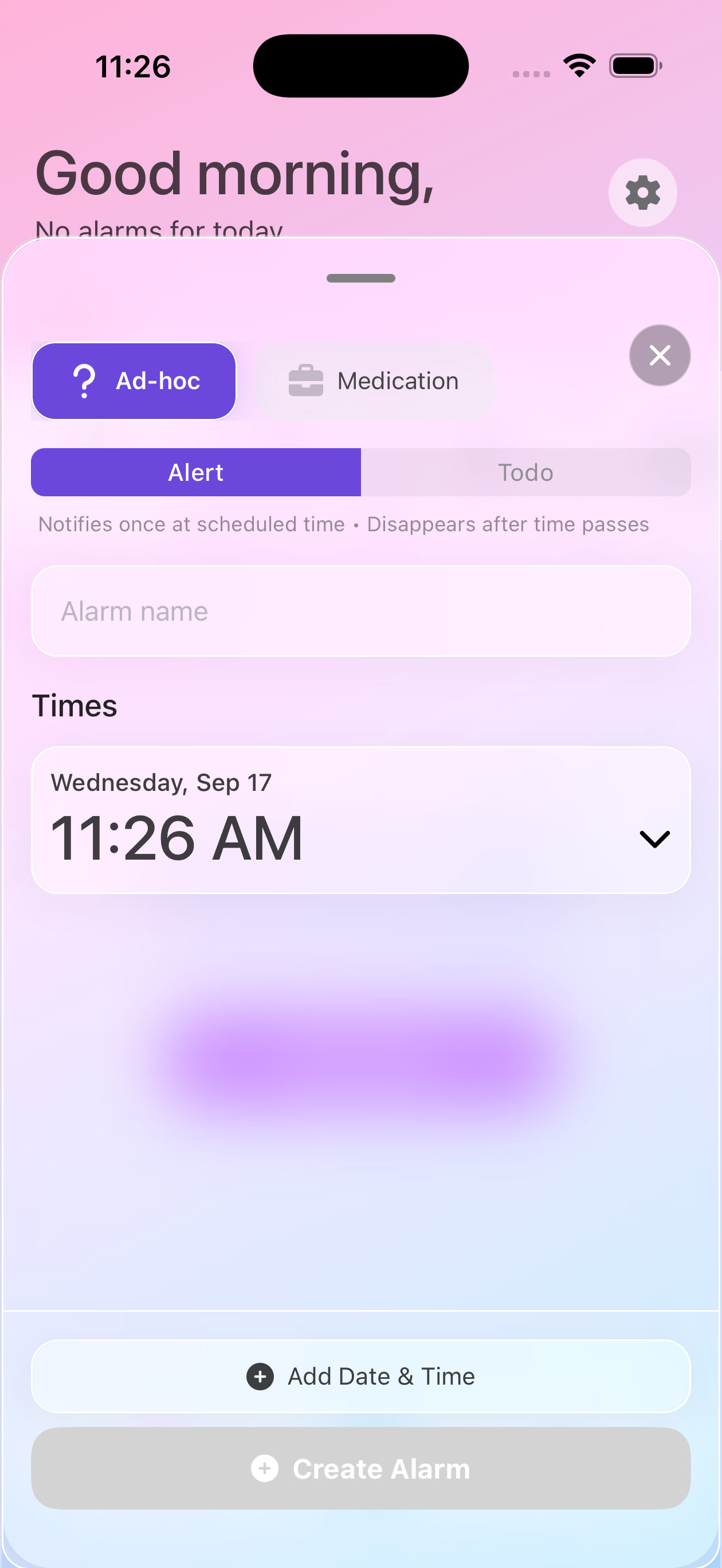
Step 2: Add First Schedule
- Tap “Add Date & Time”
- Set the first time (e.g., 8:00 AM)
- Configure repeat settings
- Don’t save yet!
Step 3: Add Additional Schedules
- Tap “Add Date & Time” again
- Set the second time (e.g., 8:00 PM)
- The repeat settings apply to ALL schedules
- Add more times as needed
- Tap Save when done
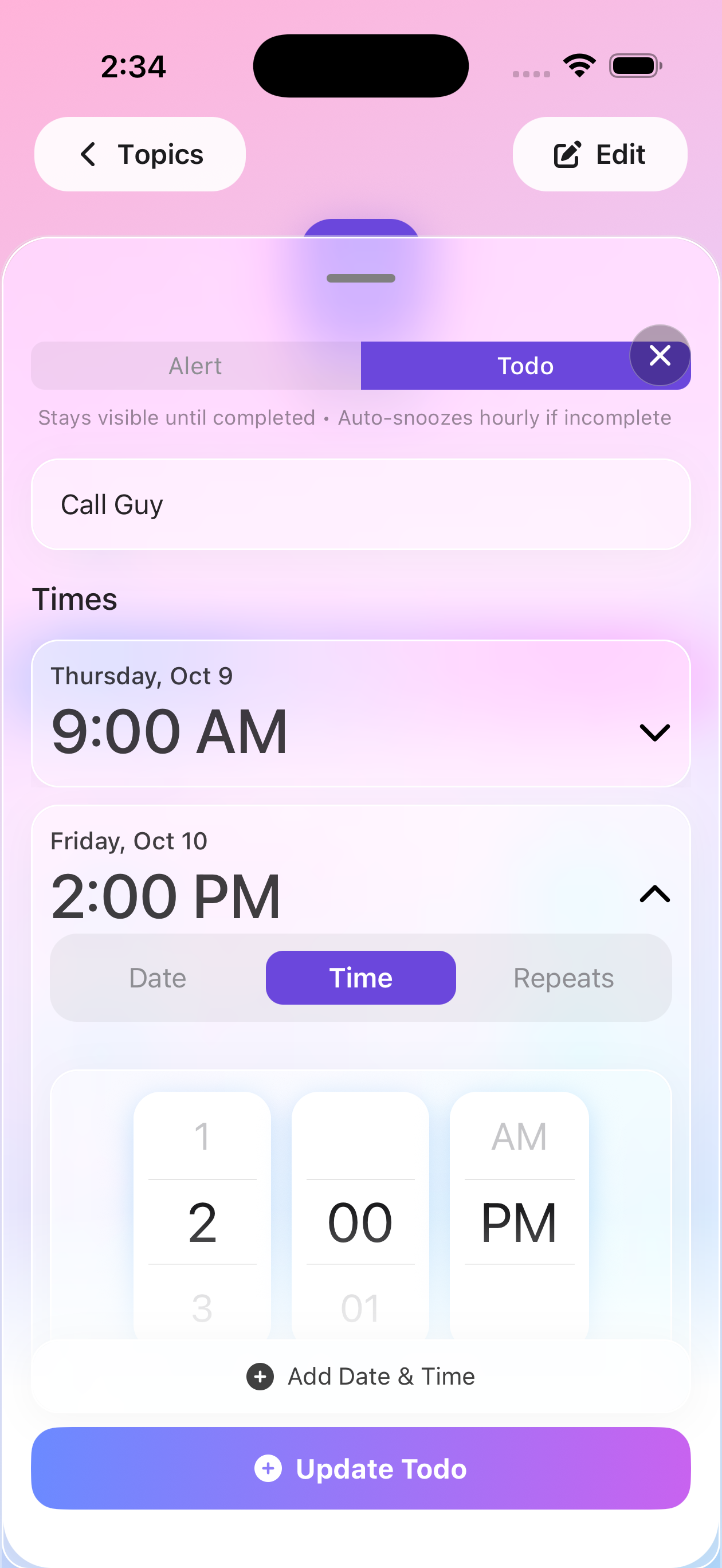
Step 4: View All Schedules
After saving, tap the alarm to see all schedules:
- Each time listed separately
- All share the same repeat pattern
- Toggle individual schedules on/off
- Delete specific schedules if needed
Common Multiple Schedule Patterns
Twice Daily Medication
Example: Blood Pressure Medication
- Alarm: “Lisinopril 10mg”
- Schedule 1: 8:00 AM
- Schedule 2: 8:00 PM
- Repeat: Every Day
- Result: Alarm rings at both times daily
Three Times Daily with Meals
Example: Digestive Enzyme
- Alarm: “Digestive Support”
- Schedule 1: 7:30 AM (breakfast)
- Schedule 2: 12:30 PM (lunch)
- Schedule 3: 6:30 PM (dinner)
- Repeat: Every Day
Hydration Reminders
Example: Water Intake
- Alarm: “Drink Water”
- Schedule 1: 9:00 AM
- Schedule 2: 11:00 AM
- Schedule 3: 2:00 PM
- Schedule 4: 4:00 PM
- Schedule 5: 6:00 PM
- Repeat: Every Day
Medication Titration (Changing Doses)
Example: Ramping Up Medication
Week 1:
- Alarm: “New Medication - Week 1”
- Schedule: 8:00 AM only
- Repeat: Every Day
- Ends: After 7 days
Week 2:
- Alarm: “New Medication - Week 2”
- Schedule 1: 8:00 AM
- Schedule 2: 8:00 PM
- Repeat: Every Day
- Ends: After 7 days
Managing Multiple Schedules
Viewing Schedules
- Tap the alarm in your topic
- All schedules display in the edit view
- Each has its own time and toggle
- All share the alarm name
Editing a Schedule
- Tap the alarm
- Find the schedule you want to change
- Tap on that schedule’s time
- Adjust the time
- Save changes
Disabling One Schedule
To turn off just one time without deleting:
- Go to the Manage tab
- Tap on your topic to view the alarms list
- Find the schedule to disable
- Toggle it off
- Other schedules remain active
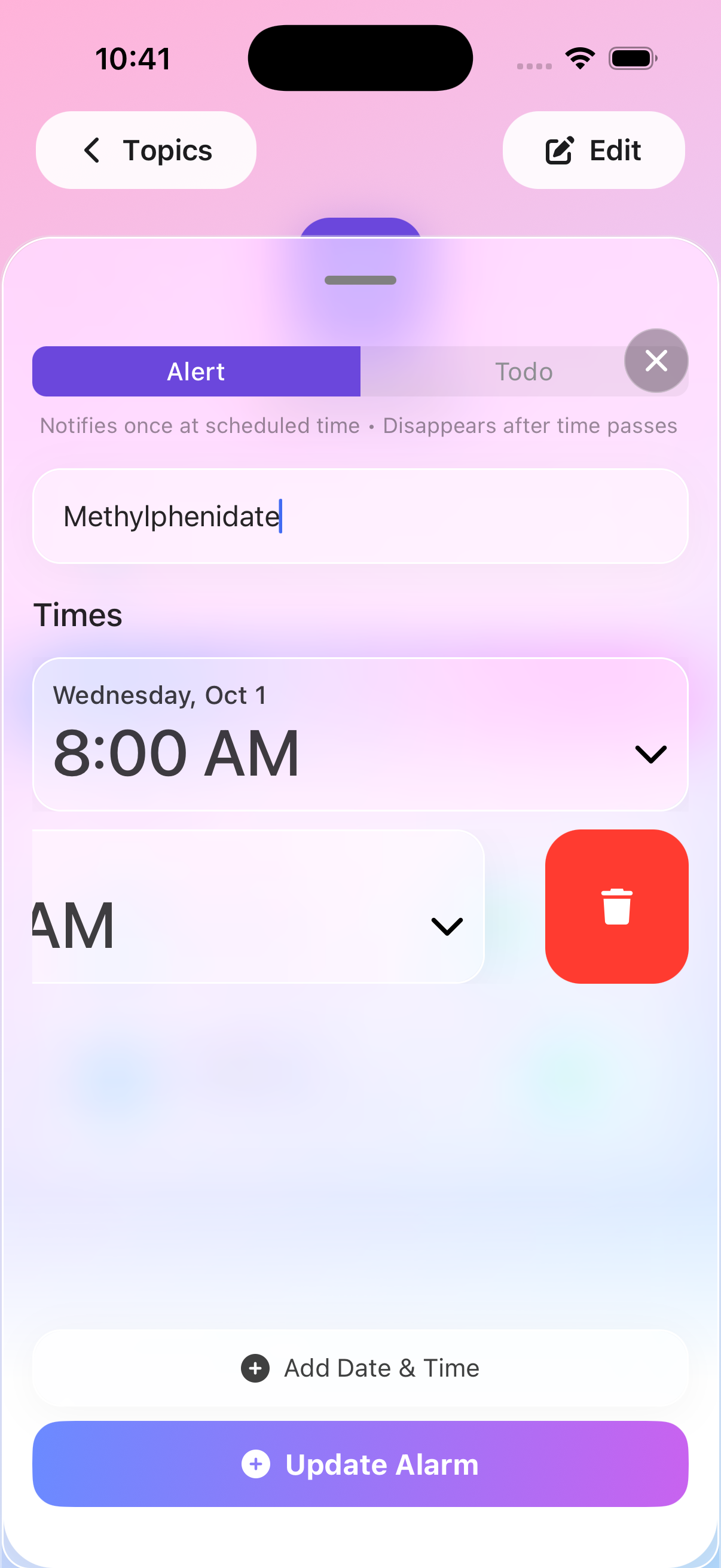
Deleting One Schedule
To remove a specific time:
- Tap the alarm
- Find the schedule to remove
- Tap the delete/remove button (if alarm has multiple schedules)
- Confirm deletion
Changing Repeat Pattern
Each schedule can have its own repeat pattern:
- Set repeat independently for each schedule
- Different schedules can have different recurrence patterns
- Edit each schedule’s repeat settings separately
Practical Examples
Example 1: Antibiotic Course
Setup:
- Alarm: “Amoxicillin 500mg”
- Type: Alert
- Schedule 1: 8:00 AM
- Schedule 2: 8:00 PM
- Repeat: Every Day
- Ends: After 20 occurrences (10 days)
Result:
- Rings at 8 AM and 8 PM daily
- Automatically counts down doses
- Stops after 10 days
Example 2: Insulin Doses
Setup:
- Alarm: “Rapid Insulin - Meals”
- Type: Alert
- Schedule 1: 7:00 AM (breakfast)
- Schedule 2: 12:00 PM (lunch)
- Schedule 3: 6:00 PM (dinner)
- Repeat: Every Day
- Ends: Never
Result:
- Three daily reminders
- Same times every day
- One alarm to manage
Example 3: Supplement Stack
Setup:
- Alarm: “Daily Supplements”
- Type: Alert
- Schedule 1: 8:00 AM (with breakfast)
- Schedule 2: 2:00 PM (afternoon)
- Repeat: Every Day
- Ends: Never
Result:
- Two supplement reminders
- Spaced throughout day
- Never forgets afternoon dose
Benefits vs. Separate Alarms
Multiple Schedules in One Alarm
Pros:
- ✅ Single alarm to manage
- ✅ See all times together
- ✅ Each schedule can have independent repeat patterns
- ✅ Less clutter in topic
- ✅ Clear they’re related
Cons:
- ❌ Can’t disable just one schedule from the alarm edit screen
- ❌ Need to go to topic list to toggle individual schedules
Separate Alarms
Pros:
- ✅ Independent control
- ✅ Different repeat patterns possible
- ✅ More detailed labeling
- ✅ Can disable one without affecting others
Cons:
- ❌ More alarms to manage
- ❌ Changes needed in multiple places
- ❌ Harder to see they’re related
- ❌ More visual clutter
Best Practices
Use for Same Task/Medication
Multiple schedules work best when all times are for the exact same thing.
Consistent Spacing
Space doses appropriately:
- Twice daily: 12 hours apart (8 AM / 8 PM)
- Three times: 8 hours apart (7 AM / 3 PM / 11 PM)
- Four times: 6 hours apart
Clear Naming
Include “all doses” or timeframe:
- “Metformin - All Doses”
- “Hydration - Throughout Day”
- “Insulin - Meals”
Review Regularly
Check monthly that times still work with your schedule.
Troubleshooting
Can’t Add More Schedules?
Make sure you haven’t saved yet - add all schedules before saving the alarm.
Schedules Have Different Repeat Patterns?
This isn’t possible with multiple schedules. Use separate alarms if you need different patterns.
One Schedule Not Ringing?
Check:
- That specific schedule is toggled on
- Not in Silence Rules time
- Alarm hasn’t reached its end condition
Next Steps
Need Help?
Questions about multiple schedules? Contact support for assistance!