How to Create Your First Topic
Topics are the foundation of ZeroMiss’s organizational system. Instead of having dozens of numbered alarms that you can’t remember, you’ll group related alarms into meaningful topics.
What is a Topic?
A topic is a category that groups related alarms together. For example:
- Medication - All your medication reminders
- Work Meetings - Meeting preparation alarms
- Family - School runs, family dinners, activities
- Personal Care - Exercise, meditation, self-care routines
Creating Your First Topic
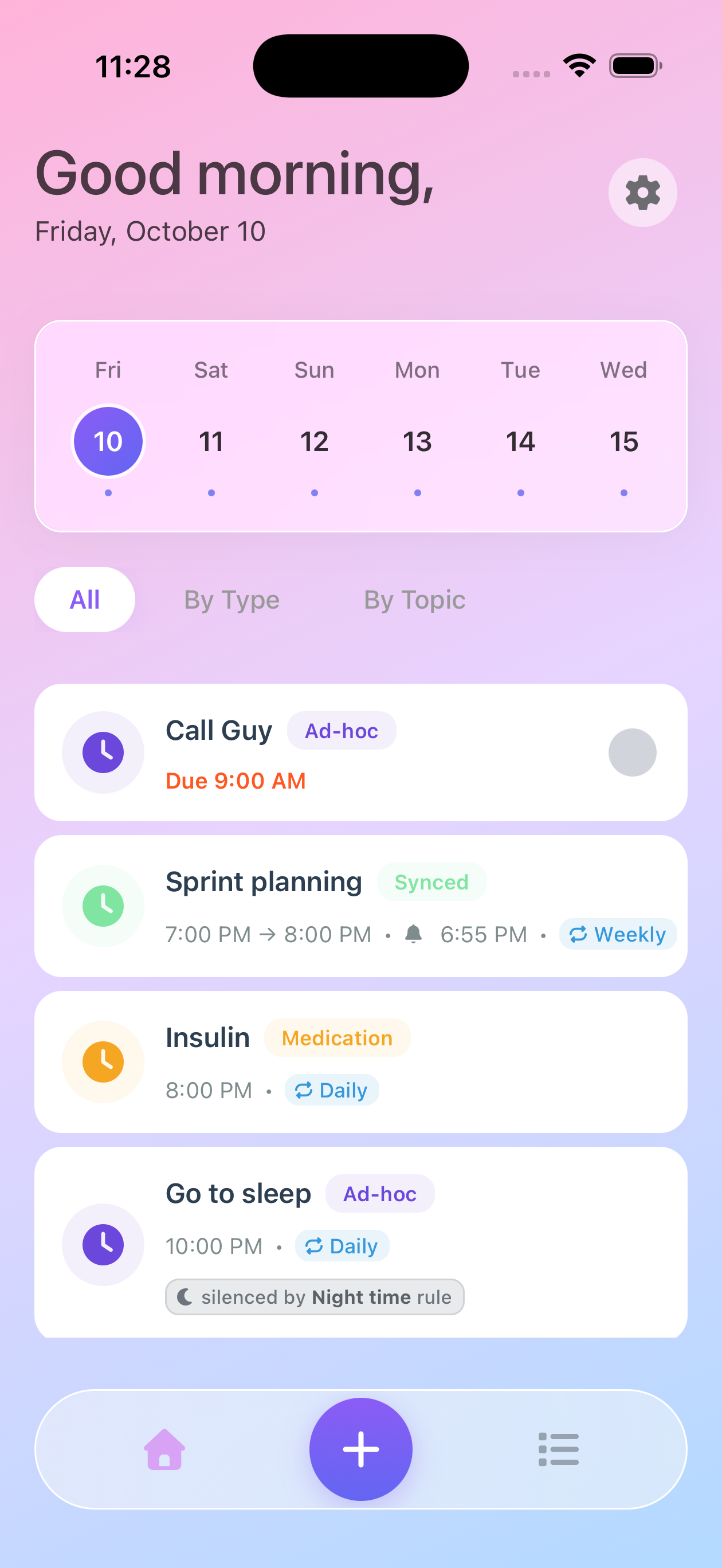
Step 1: Open ZeroMiss
Launch the ZeroMiss app on your iPhone. You’ll see your home screen with any existing alarms or topics.
Step 2: Navigate to Manage Tab
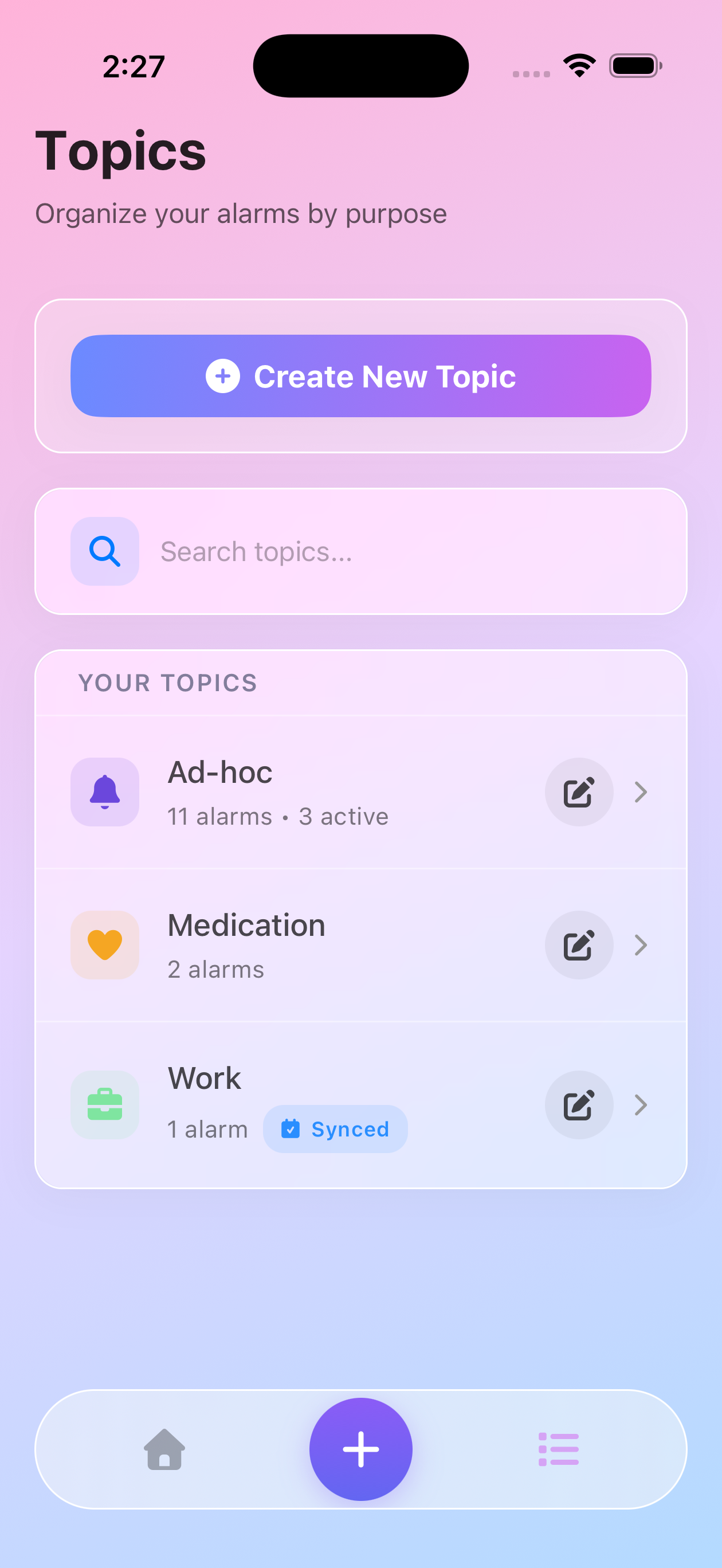
Tap the Manage tab in the bottom navigation bar (the list icon on the right side).
Step 3: Create New Topic
You’ll see your topics list with a “Create New Topic” button at the top. Tap it to begin.
Note: Free plan users have a limit on the number of topics they can create. Premium removes this limit for unlimited organization.
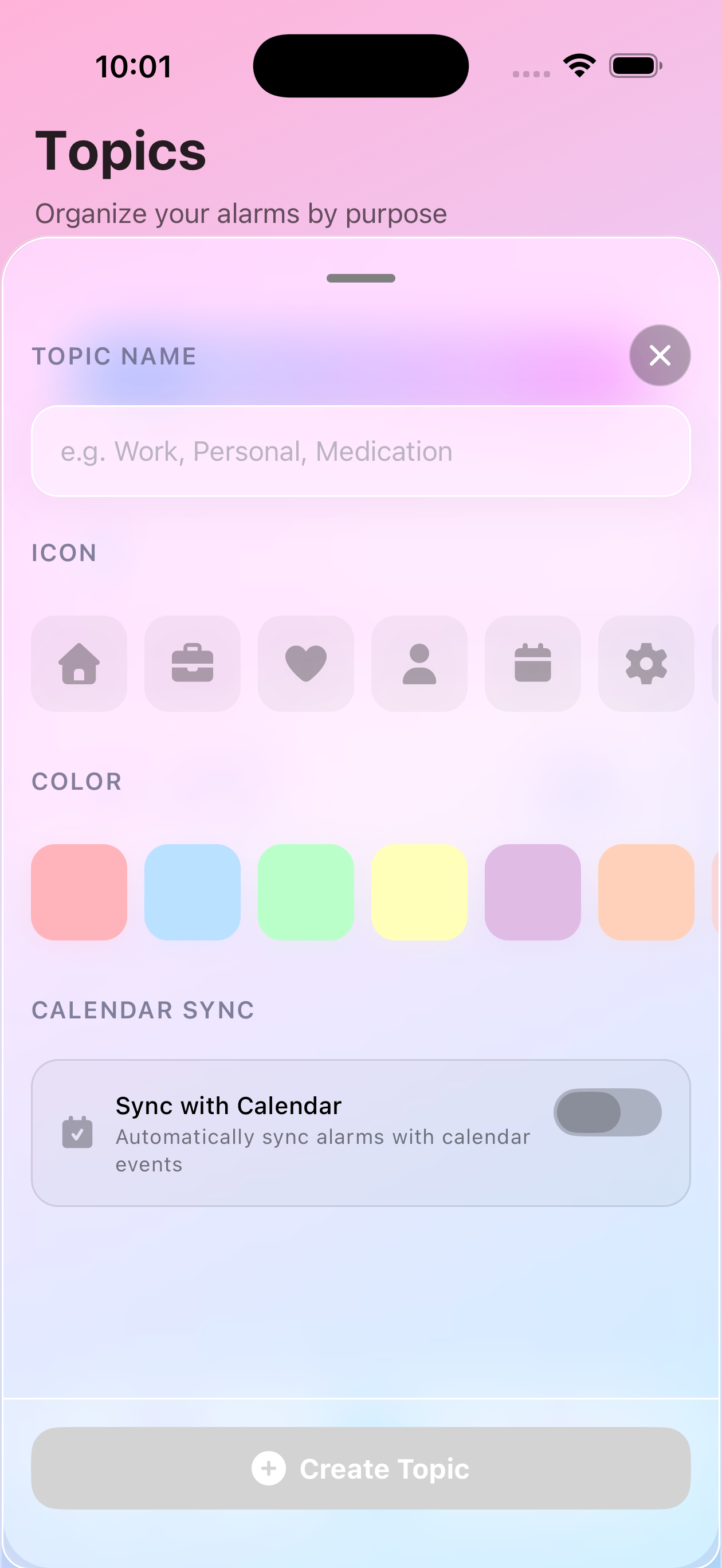
Step 4: Name Your Topic
Give your topic a meaningful name:
- ✅ Good: “Morning Medication”
- ❌ Bad: “Alarms 1”
Step 5: Choose an Icon
Select an icon that represents your topic. This helps with visual recognition:
- 💊 Pills for medication
- 💼 Briefcase for work
- 🏠 House for home tasks
- 🏃 Runner for exercise
Step 6: Pick a Color
Choose a color that stands out. Different colors for different topics help you quickly identify what’s coming up in your filtered views.
Step 7: Create Your Topic
Tap the “Create Topic” button at the bottom to save your topic. You’ll now see it in your topics list and can start adding alarms to it.
Note: The icon and color fields must be filled in before you can create the topic. The button will be disabled until all required fields are complete.
Best Practices
Keep Topics Focused
Each topic should have a clear purpose. Don’t mix unrelated alarms.
Use Descriptive Names
“Morning Routine” is better than “AM Stuff”
Start Small
Begin with 2-3 topics and expand as needed:
- Start with your most important category (e.g., Medication)
- Add work-related alarms
- Then add personal/family items
Common Topic Examples
For Medication Management
- “Morning Meds”
- “Evening Meds”
- “Weekly Medications”
- “Vitamin Schedule”
For Professionals
- “Client Meetings”
- “Team Standups”
- “Project Deadlines”
- “Meeting Prep”
For Students
- “Class Schedule”
- “Assignment Deadlines”
- “Study Sessions”
- “Exam Prep”
For Parents
- “School Schedule”
- “Kids Activities”
- “Family Meals”
- “Bedtime Routine”
Viewing Your Topics
Once created, topics appear in several places:
- Manage tab - Full list with search and management options
- By Topic filter - On the Home screen, switch to “By Topic” view to see alarms organized by their topics
- Topic colors and icons - Visual indicators help you quickly recognize which topic each alarm belongs to
What’s Next?
Once you’ve created your first topic, you can:
- Add alarms to your topic
- Use Smart Filtering to view by topic
- Set up recurring schedules
- Connect your calendar
Need Help?
If you’re having trouble creating topics, contact our support team and we’ll help you get organized!