How to Connect Your Calendar
ZeroMiss syncs with your Apple Calendar to let you browse events and create alarms for your meetings and appointments.
How It Works
ZeroMiss syncs through Apple Calendar - we never ask for your Google, Microsoft, or other calendar credentials. Simply add your calendars to Apple Calendar on your iPhone, and ZeroMiss will access them.
Supported Calendars
ZeroMiss works with any calendar that syncs to Apple Calendar on your iPhone:
- ✅ Apple Calendar (iCloud) - Native support
- ✅ Google Calendar - Add via iPhone Settings > Calendar > Accounts
- ✅ Microsoft Outlook/Exchange - Add via iPhone Settings > Calendar > Accounts
- ✅ Office 365 - Add via iPhone Settings > Calendar > Accounts
- ✅ Yahoo Calendar - Add via iPhone Settings > Calendar > Accounts
- ✅ Any CalDAV calendar - Add via iPhone Settings > Calendar > Accounts
Connecting Your Calendar
Step 1: Add Calendars to Apple Calendar (if needed)
For Google Calendar, Outlook, or other calendars:
- Open iPhone Settings
- Scroll to Calendar > Accounts
- Tap Add Account
- Choose your calendar provider (Google, Outlook, etc.)
- Sign in with your account credentials
- Toggle Calendars ON for that account
Step 2: Create an Autosync Topic
- Go to Manage tab (list icon on the right)
- Tap “Create New Topic” button
- Enter a topic name (e.g., “Work Calendar”)
- Choose an icon and color (required)
- Toggle Autosync ON
- This will prompt for calendar access
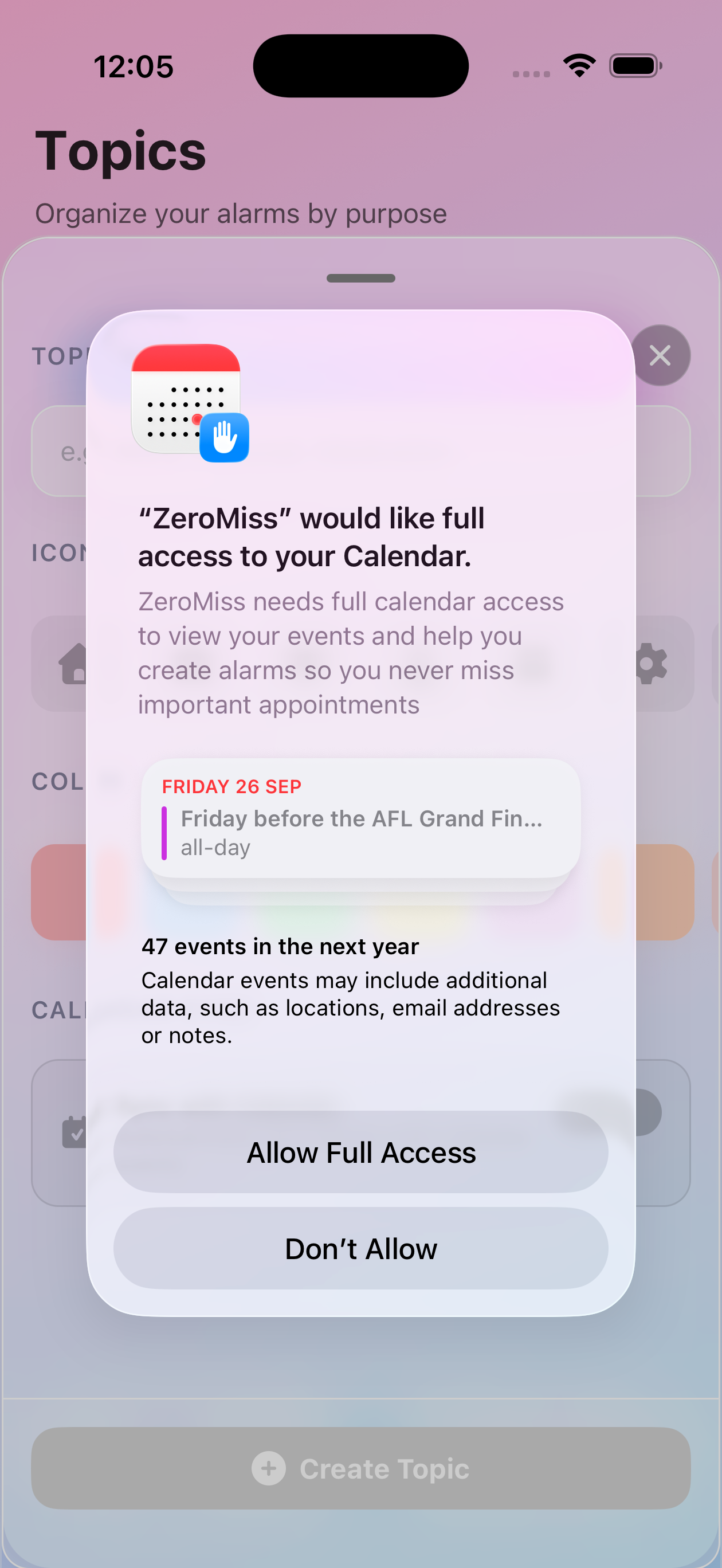
Step 3: Grant Calendar Permission
When you enable autosync for the first time:
- ZeroMiss will request calendar access
- Tap OK or Allow when iOS asks for permission
- This is a one-time permission
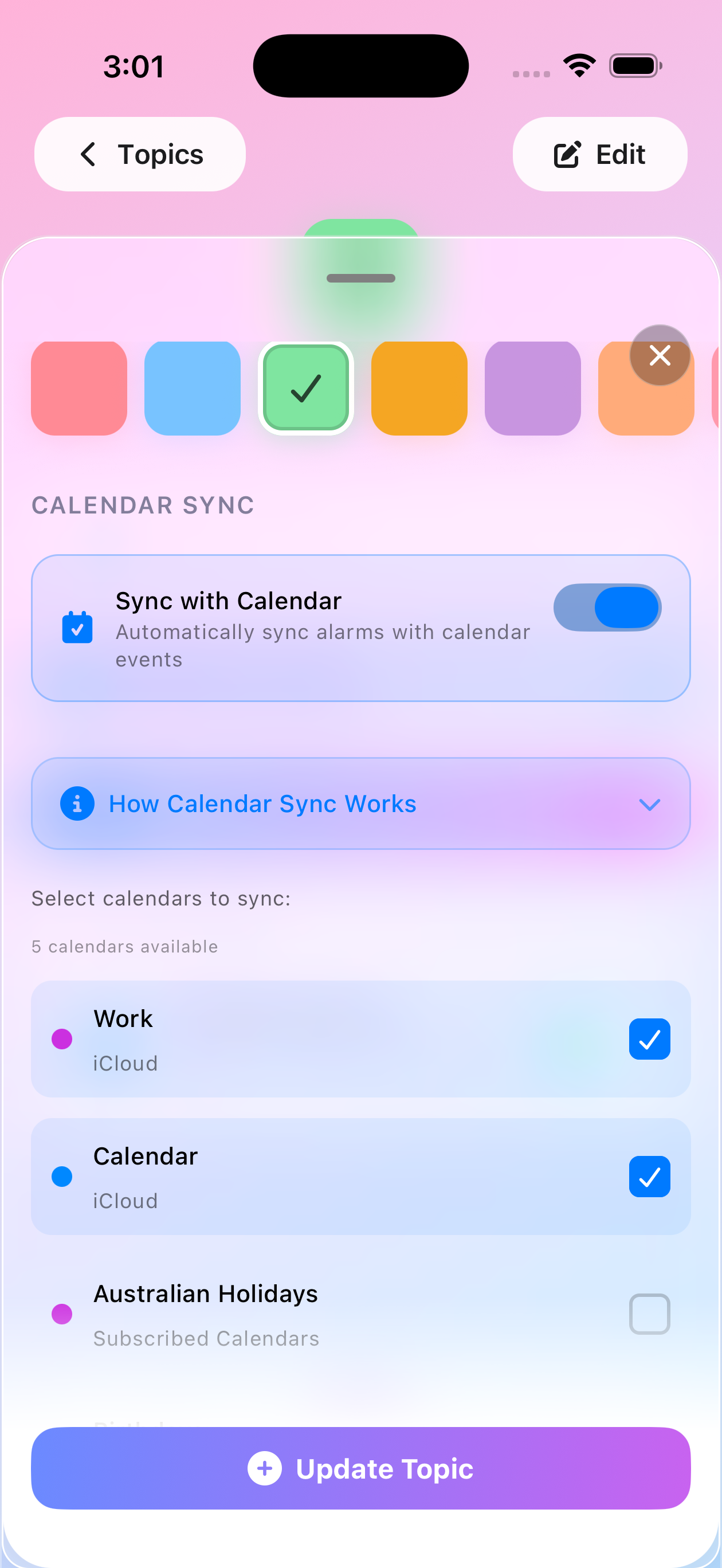
Step 4: Select Your Calendars
After granting permission:
- You’ll see a list of all your calendars
- Toggle ON the calendars you want to sync with this topic
- Example: Select “Work” calendar for work meeting alarms
- Tap “Create Topic” to save
Step 5: Browse and Create Alarms
Once your autosync topic is created:
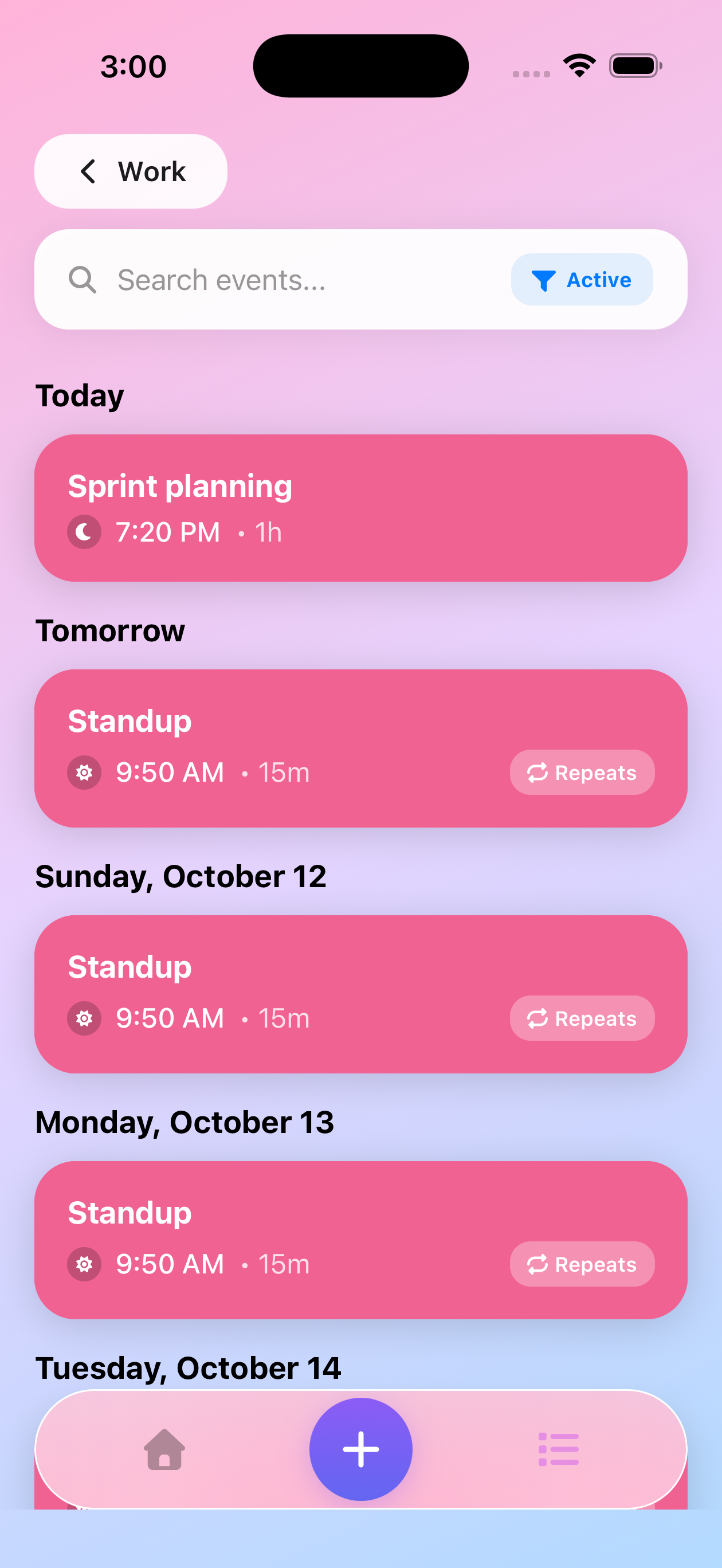
- Tap on the topic in the Manage tab
- Browse your upcoming calendar events
- Select the events you want to create alarms for
- Tap the Create Alarm button
- Choose your offset time (how long before the meeting you want the alarm: 5 min, 15 min, 30 min, 1 hour, or custom)
- The alarms will be created for the selected events
Multiple Calendar Topics
You can create multiple autosync topics for different calendars:
Work Topic:
- Sync with work calendar
- 15-minute lead time for meetings
- Orange color for visibility
Personal Topic:
- Sync with personal calendar
- 30-minute lead time for appointments
- Blue color for distinction
Family Topic:
- Sync with shared family calendar
- 1-hour lead time for events
- Green color for family activities
Managing Calendar Alarms
- New events → Browse and create alarms for upcoming events
- Event changes → Manually update or recreate alarms as needed
- Cancelled events → Delete the associated alarms manually
Best Practices
Choose Relevant Calendars
Don’t sync every calendar - be selective:
- ✅ Work calendar for meeting prep
- ✅ Personal appointments
- ❌ Birthday calendars (too many)
- ❌ Holiday calendars (not needed)
Set Appropriate Lead Times
Different events need different prep:
- Quick calls: 5 minutes
- Standard meetings: 15 minutes
- Important meetings: 30 minutes
- Appointments: 1 hour
Use Multiple Topics
Separate work from personal:
- Keeps calendars organized
- Different lead times per calendar type
- Easy to manage separately
Troubleshooting
Calendar Permission Denied?
If you denied permission:
- Go to iPhone Settings
- Scroll to ZeroMiss
- Tap Calendars
- Select Full Access
Calendars Not Showing?
Check:
- Calendar is added to Apple Calendar app
- Calendar is visible in Apple Calendar
- Events exist in that calendar
- Pull to refresh in ZeroMiss
Events Not Syncing?
Verify:
- Calendar is selected in the topic
- Events are in the future
- Topic has calendar sync enabled
- Browse events to see upcoming calendar items
Privacy & Security
- ZeroMiss only reads calendar data, never writes to it
- Your calendar data stays on your device
- Revoke access anytime in iPhone Settings
- No calendar data stored on our servers
Next Steps
Once your calendar is connected:
Need Help?
Questions about calendar sync? Contact support for assistance!