Setting Up Medication Schedules
ZeroMiss helps you never miss a medication dose. Whether you take pills once, twice, or multiple times per day, setting up reliable reminders is simple.
Creating a Medication Topic
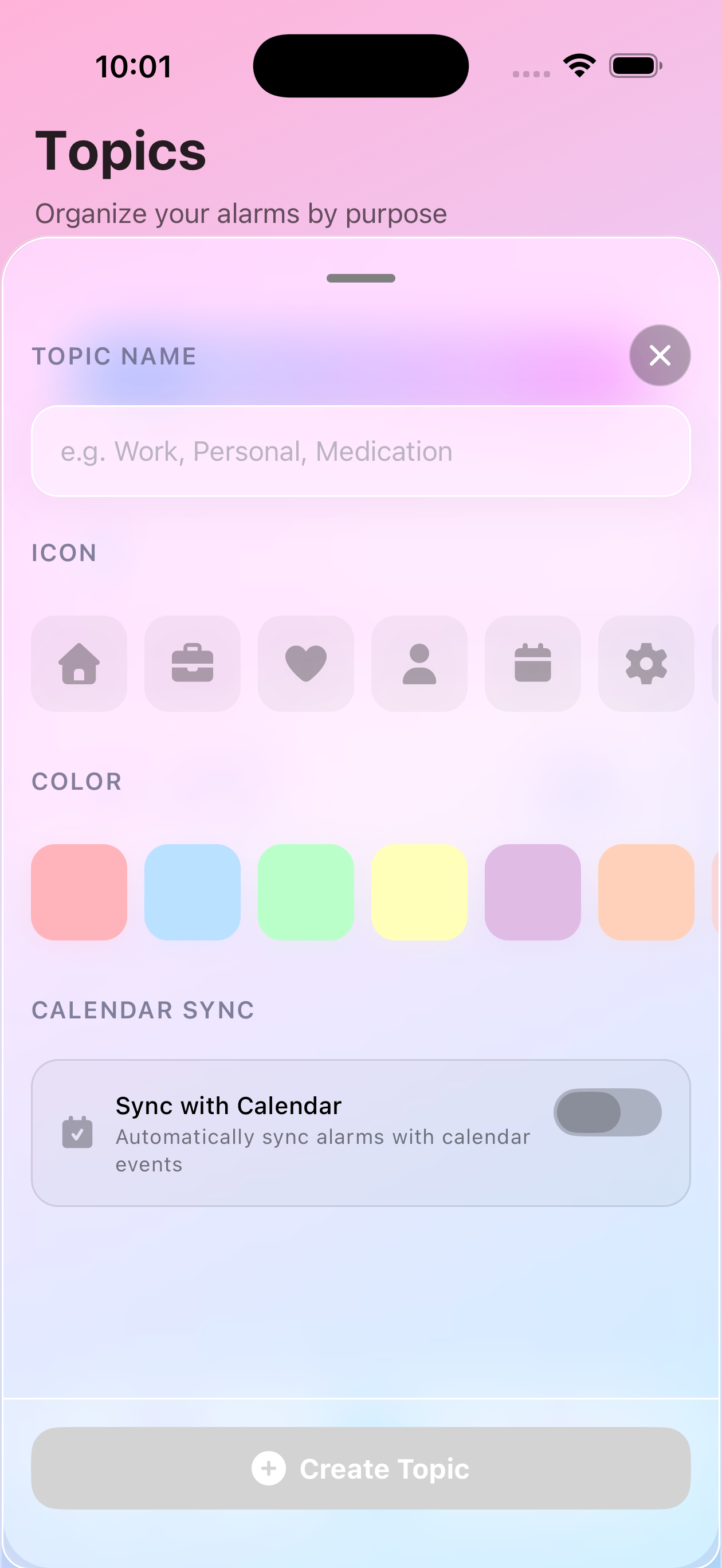
Step 1: Create a Topic for Your Medications
- Go to Manage tab (list icon on the right)
- Tap “Create New Topic” button at the top
- Name it descriptively (e.g., “Morning Meds”, “Daily Medications”)
- Choose the pill icon 💊
- Select a visible color (red or orange recommended)
- Tap “Create Topic”
Why use topics for medications?
- Keep all medication reminders organized together
- Easy to find and manage
- Visual color coding for quick recognition
- Separate from other alarms
Single Medication Alarm
For medications taken once daily:
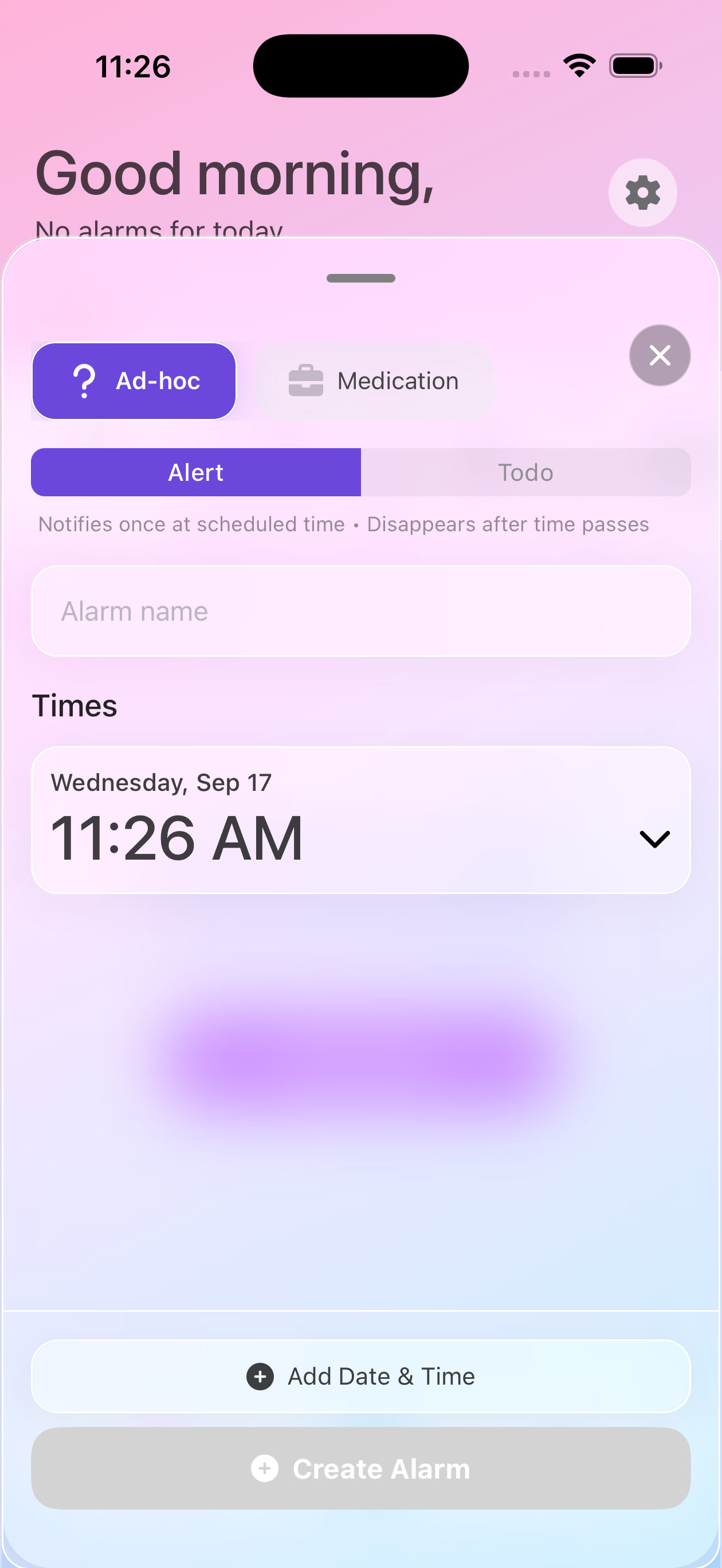
Step 1: Add the Alarm
- Open your medication topic
- Tap “Add Alarm” button
- Enter the medication name (e.g., “Metformin 500mg”)
- Choose Todo type (stays visible until marked done)
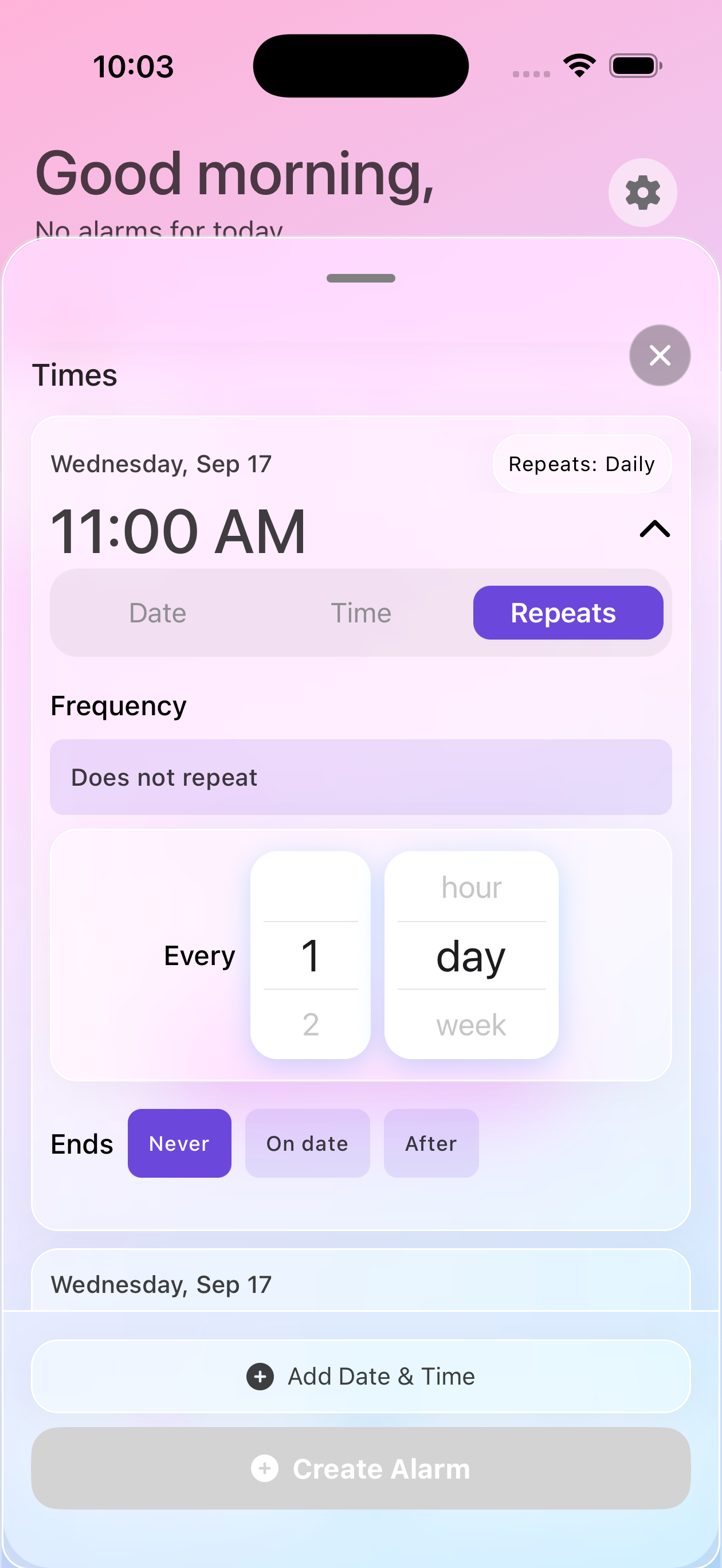
Step 2: Set the Time
- Tap “Add Date & Time”
- Set when you need to take it (e.g., 8:00 AM)
- Configure repeat pattern
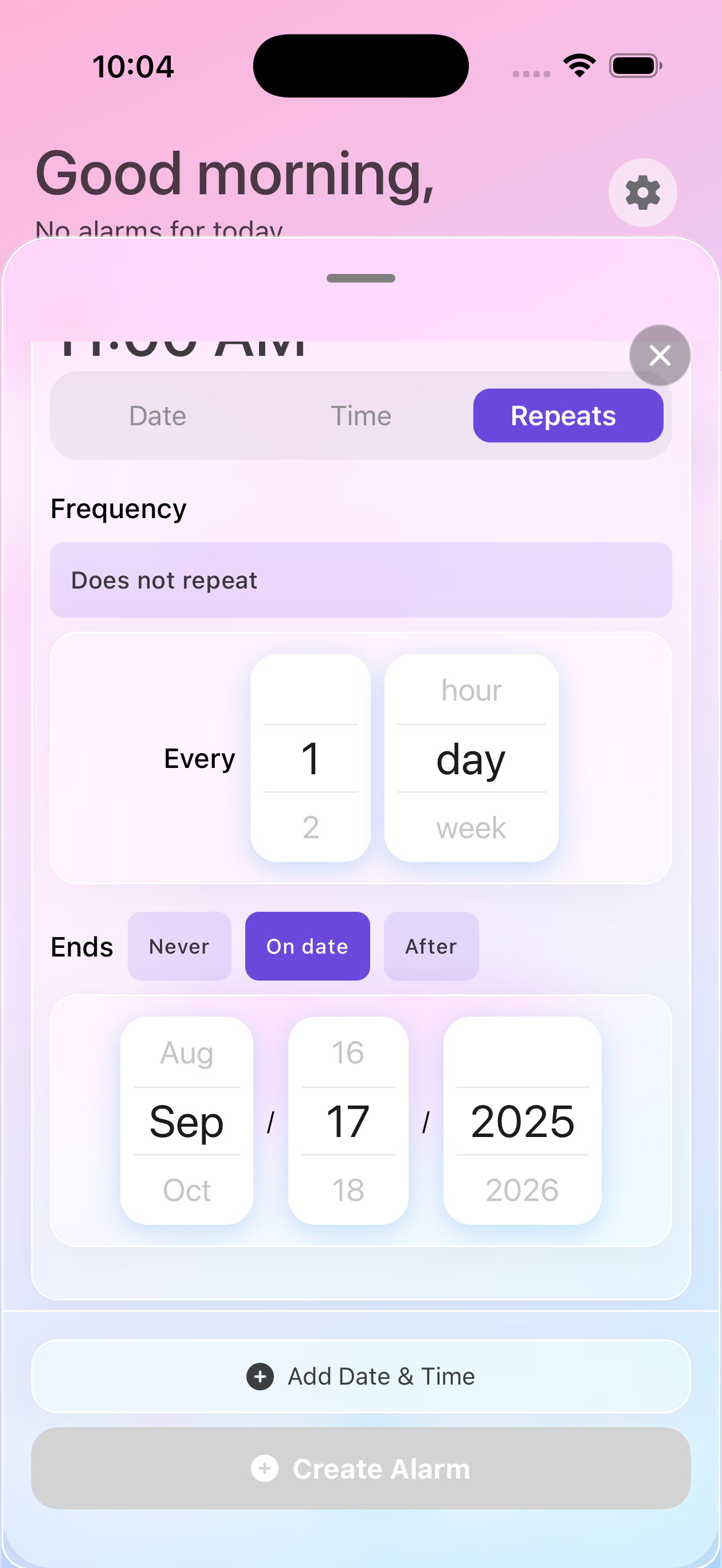
Step 3: Configure Daily Repeat
- Toggle Repeat ON
- Select Every Day
- Set when it ends:
- Never - For ongoing medications
- On Date - For temporary courses (antibiotics)
- After - For specific number of doses
Multiple Times Per Day
For medications taken 2-3+ times daily, you have two options:
Option A: Multiple Schedules in One Alarm
Best for: Same medication, different times
- Create the alarm with medication name
- Tap “Add Date & Time” for first dose (8:00 AM)
- Configure repeat pattern for first dose
- Tap “Add Date & Time” again for second dose (8:00 PM)
- Configure repeat pattern for second dose
- Add more times as needed
- Save the alarm
Benefits:
- One alarm to manage
- All doses grouped together
- Easy to see full schedule
- Each schedule can have independent repeat patterns
Option B: Separate Alarms for Each Dose
Best for: Different medications at different times
- Create alarm for morning dose: “Medication A - Morning”
- Set time: 8:00 AM, repeat daily
- Create second alarm: “Medication A - Evening”
- Set time: 8:00 PM, repeat daily
Benefits:
- Independent control of each dose
- Can disable one without affecting others
- Clear labels for morning vs evening
Common Medication Schedules
Twice Daily (Every 12 Hours)
Example: Antibiotic Course
- Medication: “Amoxicillin 500mg”
- Type: Alert
- Times: 8:00 AM, 8:00 PM (use “Add Date & Time” twice)
- Repeat: Every Day
- Ends: After 20 doses (10 days)
Three Times Daily (With Meals)
Example: Digestive Medication
- Medication: “Digestive Enzyme”
- Type: Alert
- Times: 7:30 AM, 12:30 PM, 6:30 PM
- Repeat: Every Day
- Ends: Never
Four Times Daily (Every 6 Hours)
Example: Pain Management
- Medication: “Pain Relief - Round the Clock”
- Type: Alert
- Times: 6:00 AM, 12:00 PM, 6:00 PM, 12:00 AM
- Repeat: Every Day
- Ends: On specific date
Every Other Day
Example: Weekly Medication
- Medication: “Vitamin D - Weekly”
- Type: Alert
- Time: 9:00 AM
- Repeat: Custom → Every 2 days
- Ends: Never
Specific Days of the Week
Example: Injection Schedule
- Medication: “Weekly Injection”
- Type: Alert
- Time: 7:00 PM
- Repeat: Weekly → Select specific days (Mon, Thu)
- Ends: Never
Best Practices
Clear Naming
Include dosage for clarity:
- ✅ “Metformin 500mg - Morning”
- ✅ “Synthroid 75mcg”
- ❌ “Pills”
- ❌ “Medication”
Use Alert Type
Always choose Alert (not Todo) for medications:
- Requires active dismissal
- Won’t disappear if ignored
- Critical for time-sensitive doses
Set Realistic Times
Choose times you can consistently manage:
- Morning: After waking routine
- Evening: Before bed routine
- With meals: Actual meal times
Plan for Refills
Set a separate reminder:
- Name: “Refill Metformin”
- 5 days before you run out
- Gives time to get prescription
Temporary Medications
Short-Term Antibiotics
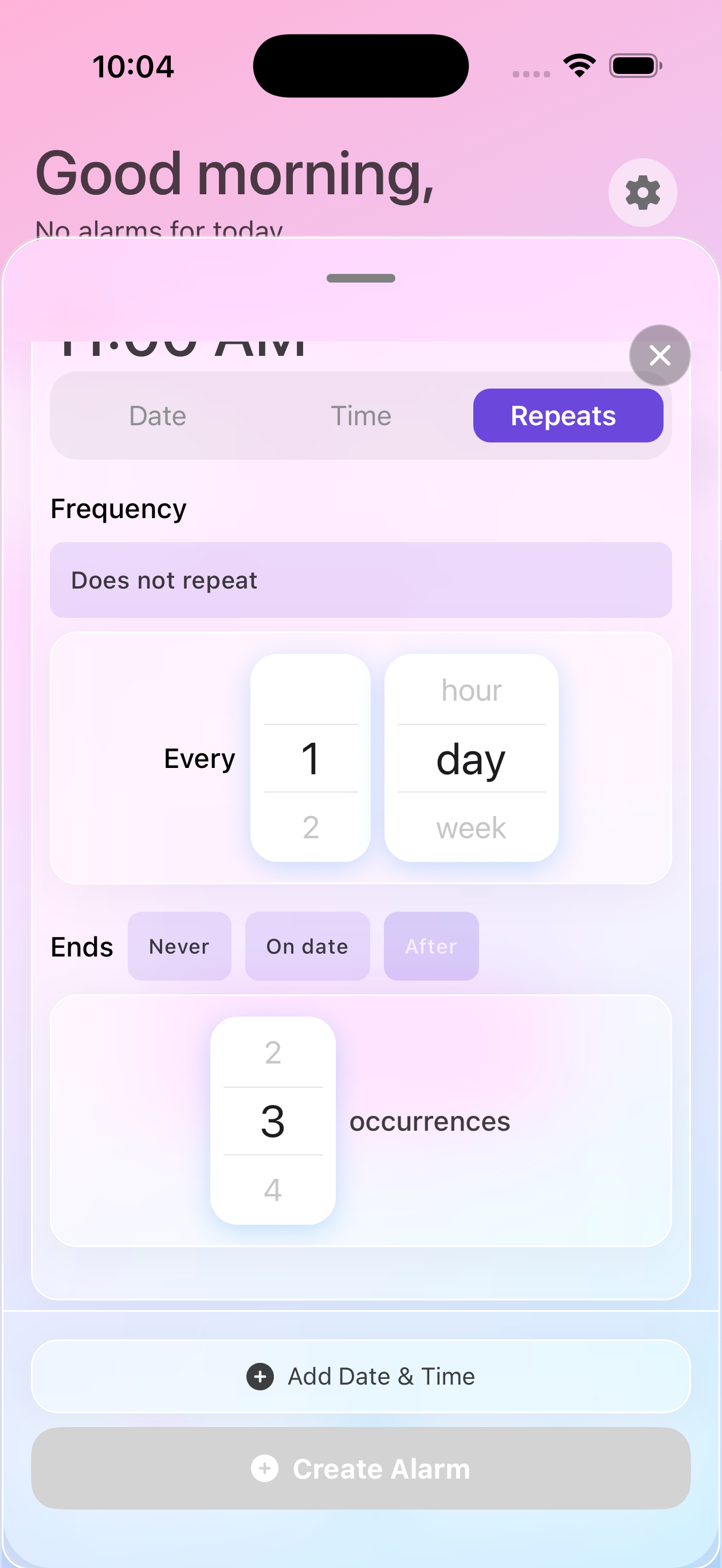
Use “Ends After” for precise dose counting:
- 10-day course = 20 doses (twice daily)
- 7-day course = 21 doses (three times daily)
- App counts down automatically
Trial Medications
Use “Ends On Date” for trials:
- 30-day trial period
- Set end date for review
- Decide whether to continue
Managing Multiple Medications
Organize by Time of Day
Create multiple topics:
Morning Medications Topic:
- All pills taken at wake time
- Same color (yellow)
- One place to check
Evening Medications Topic:
- All bedtime pills
- Different color (blue)
- Separate from morning
Organize by Condition
Create topics by health need:
- “Heart Health” - cardiac meds
- “Diabetes” - insulin, metformin
- “Vitamins” - daily supplements
Viewing Your Medication Alarms
On the Home screen, use filters to see medications:
By Topic Filter:
- See all alarms in your medication topic
- Color-coded by topic
- Organized by category
By Type Filter:
- See all ALERTS (includes medications)
- Separate from TO-DO tasks
- Time-sensitive items together
Tips for Success
Start Simple
Begin with your most critical medication, then add others.
Be Consistent
Same times every day helps build routine.
Review Weekly
Check upcoming medication alarms every week to ensure accuracy.
Don’t Skip Doses
If you miss an alarm, check with your doctor about what to do - don’t just double up.
Troubleshooting
Alarm Didn’t Ring?
Check:
- Alarm is enabled (not grayed out)
- Phone not in silent mode (use Silence Rules instead)
- ZeroMiss notifications enabled in Settings
- Schedule is active
Wrong Time?
Edit the alarm:
- Tap the alarm in your topic
- Edit the schedule time
- Changes apply to future occurrences
Need to Pause?
Temporarily disable without deleting:
- Toggle the alarm off in your topic
- Re-enable when needed
- All settings preserved
Next Steps
Once medications are set up:
Need Help?
Questions about medication alarms? Contact support for assistance!