Silence Rules
Silence Rules let you control when alarms can interrupt you. Perfect for sleep schedules, work focus time, or any period when you need uninterrupted peace.
Quick Navigation
- Which Rule Type Should I Use?
- Time-Based Rules (Daily Recurring)
- Date-Based Rules (Specific Dates)
- Managing Your Rules
- Free vs Premium
Which Rule Type Should I Use?
Use Time-Based (Daily) Rules For:
- ✅ Sleep hours - 11:00 PM to 7:00 AM every night
- ✅ Recurring work focus blocks - 9:00 AM to 12:00 PM weekdays
- ✅ Regular meditation or exercise time - Same time each day
- ✅ Daily routines - Any repeating quiet period
Example: “Night time” - Silence alarms from 9:00 PM to 7:00 AM daily
Use Date-Based Rules For:
- ✅ Vacations and travel - Specific date ranges
- ✅ Special events - Weddings, conferences, appointments
- ✅ One-time occurrences - Specific days you need quiet
- ✅ Holiday periods - Christmas, long weekends, etc.
Example: “Vacation” - Silence alarms from Oct 10, 2025 to Oct 28, 2025
Time-Based Rules (Daily Recurring)
Perfect for daily routines like sleep, work focus blocks, or recurring quiet times.
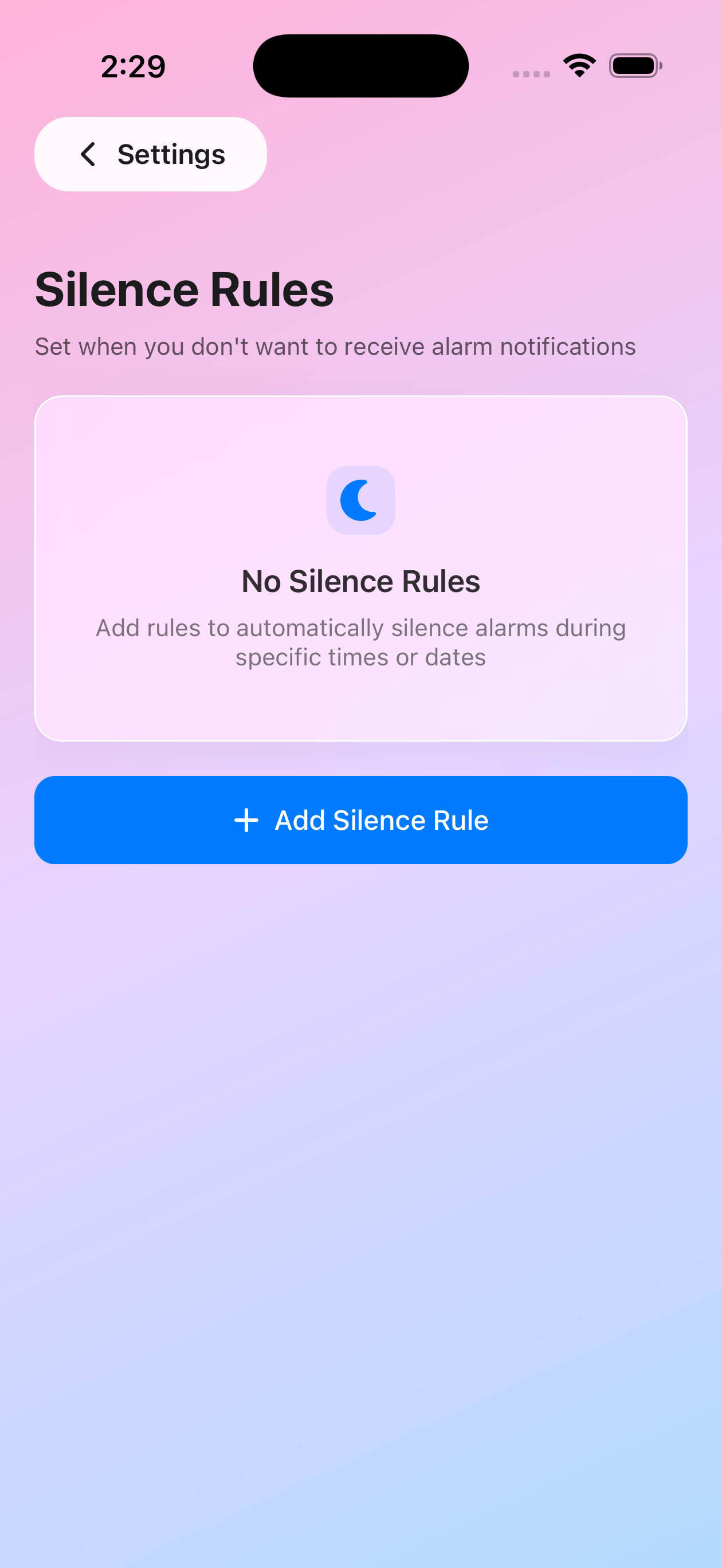
How to Create a Time-Based Rule
- Go to Settings → Silence Rules
- Tap “Add Silence Rule”
- Enter a name (e.g., “Night time”, “Work focus”, “Meditation”)
- Select “Daily Time Range”
- Set your Start Time (e.g., 9:00 PM)
- Set your End Time (e.g., 7:00 AM)
- Tap “Save Rule”
Common Time-Based Examples
Sleep Protection:
- Name: “Night time”
- Start: 11:00 PM
- End: 7:00 AM
- Result: No alarms during sleep hours every single night
Work Deep Focus:
- Name: “Morning focus”
- Start: 9:00 AM
- End: 12:00 PM
- Result: Uninterrupted focus time every weekday morning
Afternoon Quiet Time:
- Name: “Lunch break”
- Start: 12:30 PM
- End: 1:30 PM
- Result: Peaceful lunch every day
Date-Based Rules (Specific Dates)
Perfect for vacations, special events, or any specific period when you need quiet.
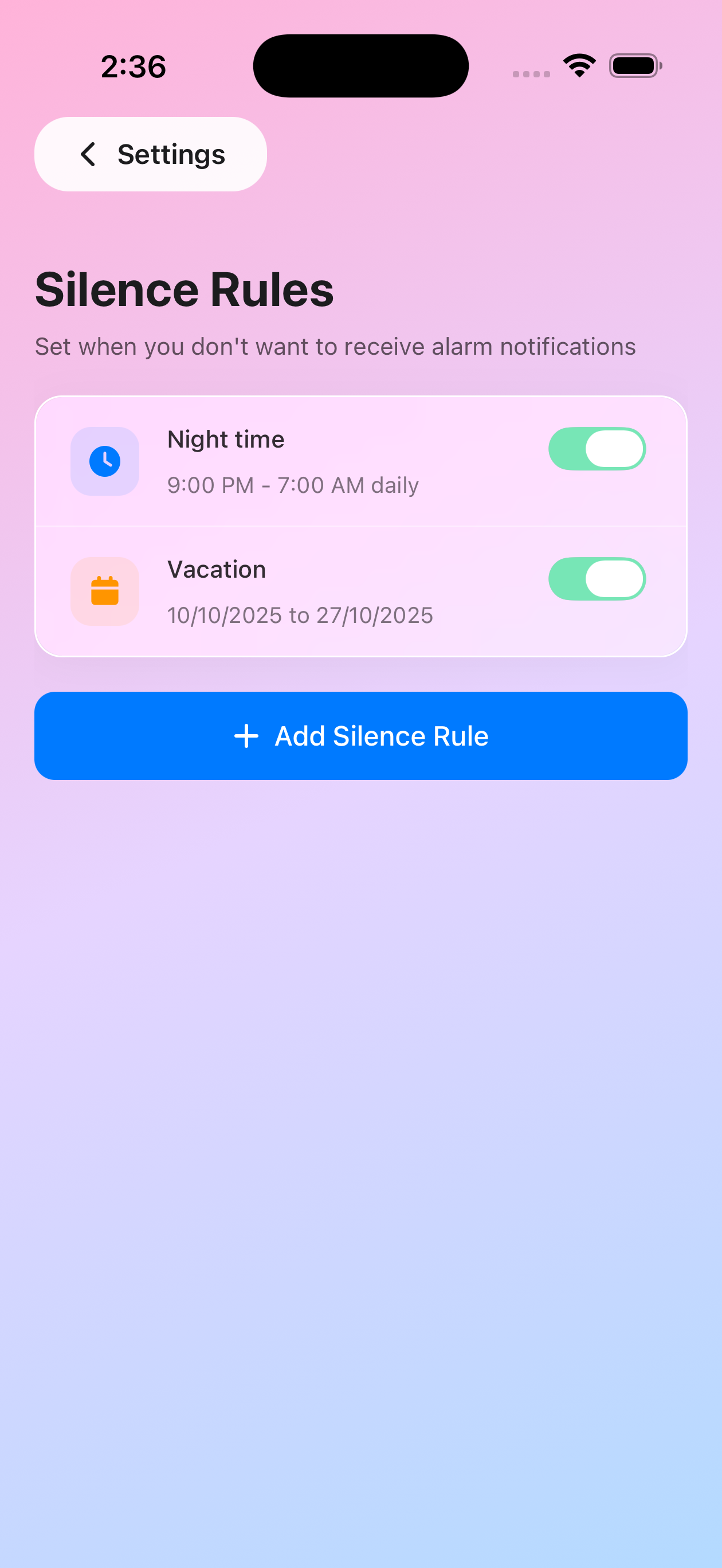
How to Create a Date-Based Rule
- Go to Settings → Silence Rules
- Tap “Add Silence Rule”
- Enter a name (e.g., “Vacation”, “Wedding weekend”, “Conference”)
- Select “Date Range” (marked with a crown 👑)
- Set your Start Date (e.g., Oct 10, 2025)
- Set your End Date (e.g., Oct 28, 2025)
- Tap “Save Rule”
Common Date-Based Examples
Vacation Mode:
- Name: “Vacation”
- Start: Dec 20, 2024
- End: Jan 5, 2025
- Result: Complete peace during your holiday
Conference Attendance:
- Name: “Tech Conference”
- Start: Mar 15, 2025
- End: Mar 17, 2025
- Result: No interruptions during the event
Special Event:
- Name: “Wedding weekend”
- Start: Jun 6, 2025
- End: Jun 8, 2025
- Result: Focus on the celebration
Managing Your Rules
Enable/Disable Rules
Toggle the switch next to any rule to turn it on or off without deleting it. Perfect for temporary exceptions.
Edit Rules
Tap on any rule to modify its name, times, or dates.
Delete Rules
Swipe left on a rule and tap the delete button to remove it permanently.
View Active Status
Active rules show with a green toggle. You can see exactly which rules are currently silencing your alarms.
Stack Multiple Rules
Combine different rule types! Use “Night time” (daily) + “Vacation” (dates) together for complete control.
Free vs Premium
- Free Tier: 1 silence rule
- Premium: Unlimited silence rules
Stack multiple rules together to create the perfect quiet schedule for your lifestyle.
Important Notes
✓ Rules apply to all topics and alarm types - Medication, Work, everything ✓ Calendar-synced alarms still update - They just won’t ring during silence periods ✓ Alarms aren’t deleted - They’re just muted temporarily ✓ Toggle off for exceptions - Disable a rule when you need an exception ✓ Rules can overlap - Multiple rules can be active at the same time
Tips & Best Practices
- Start with sleep protection - Your first rule should protect your sleep hours
- Name rules clearly - Use descriptive names like “Night time” not “Rule 1”
- Use date ranges for travel - Set vacation rules before you leave
- Disable, don’t delete - Toggle rules off instead of deleting if you might need them again
- Upgrade for flexibility - Premium lets you combine multiple schedules seamlessly